How does the Auto Group button work in Multi-Placement ad uploads?
Last updated: October 16, 2025
The Auto Group button in the Multi-Placement option is designed to streamline your ad upload process by automatically organizing your ads into logical groups based on a strict file name convention.
What Auto Group does
When you use the Auto Group feature, the system automatically analyzes your uploaded ads and groups them together if their file names are exactly the same. This ensures highly specific grouping logic.
The system will only ignore the following file name components when determining a match:
Format Size or dimensions (e.g.,
_1080x1080).Placement Indicators: The letters S (for stories) or F (for feed).
Example: An ad named Campaign_A_Final_1080x1080.jpg and an ad named Campaign_A_Final_S.mp4 will be grouped together because the core file name (Campaign_A_Final) is identical, and the variations are only for size and placement (S).
How to use Auto Group
To use the Auto Group functionality:
Navigate to the Multi-Placement upload section
Upload your ads as usual
They should be auto-grouped already, but if you have added them from the library or ungrouped them, you can always use the "Auto Group" button for using the same logic for the current available media.
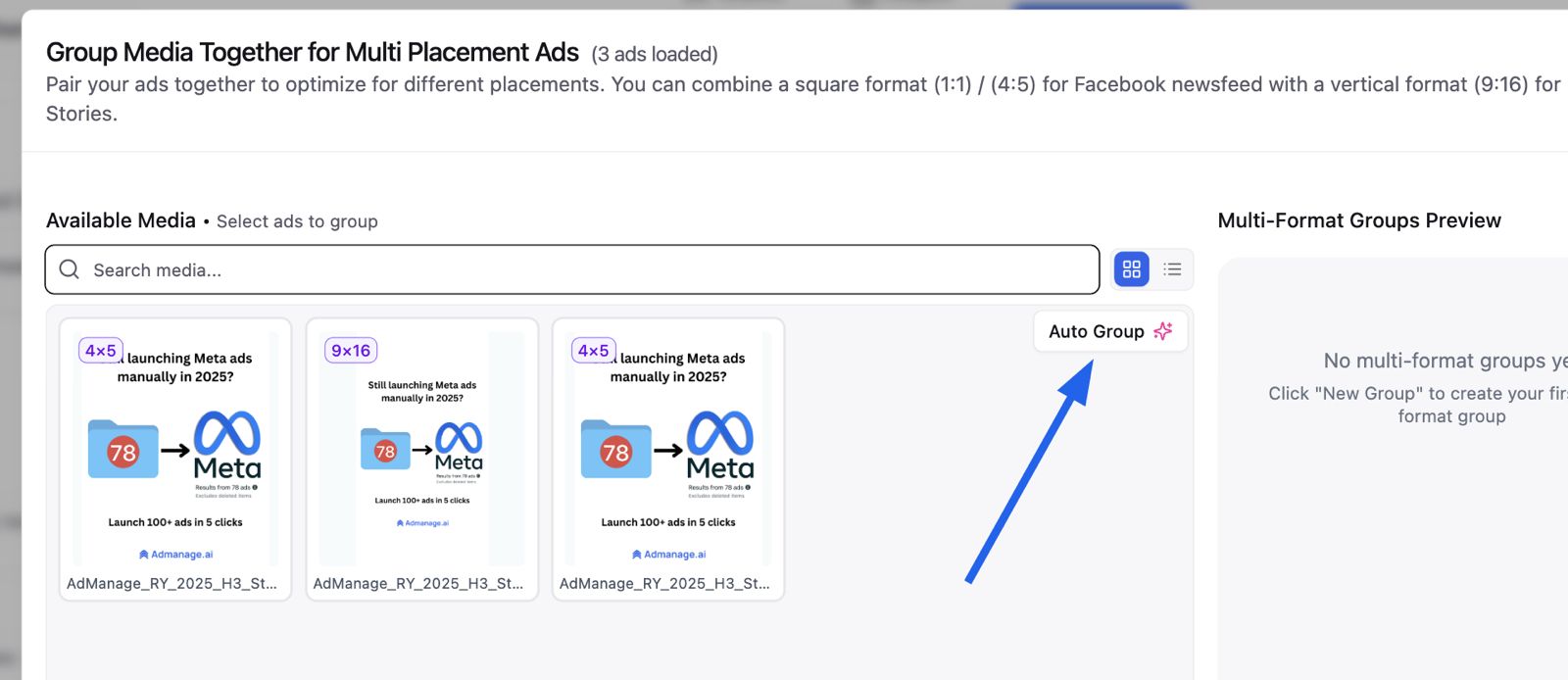
Review the groupings and make any necessary adjustments
Benefits of using Auto Group
This feature is particularly useful for saving time when managing large batches of ads, as it eliminates the need to manually sort and organize your placements. It helps ensure consistent grouping logic across your campaigns and reduces the potential for human error in ad organization.