Understanding and Managing User Roles
Last updated: October 17, 2025
AdManage.ai utilizes a flexible, workspace-based permission system that allows you to control exactly what each team member can see and do. Only users with Admin permissions can manage and change the access levels of other team members.
User Roles and Permissions
Role | Access Level & Key Capabilities | Visibility |
Admin | Full access to all features, managing team members, and editing workspaces. | Can see everything and do everything across all workspaces. |
Editor | Can launch ads and access all features. | Can only see the specific workspaces they have been added to. |
Uploader | Primarily has permissions to upload content. | Visibility is limited by workspace assignment. Note: Practical effect may be limited when system integrations are heavily used. |
Analyst | Limited visibility for viewing purposes only. Cannot launch or manage ads. | Can be invited to specific workspaces for viewing access to campaigns and data. Useful for client access. |
Commenter | Access is restricted to the comment section. | Can only access the comment section to manage customer interactions and comments. |
Granular Control: The permission system works directly with workspaces. By adding a user to a specific workspace, you ensure they only have access to the ad accounts contained within that workspace, providing granular control over their actions.
How to Change User Roles
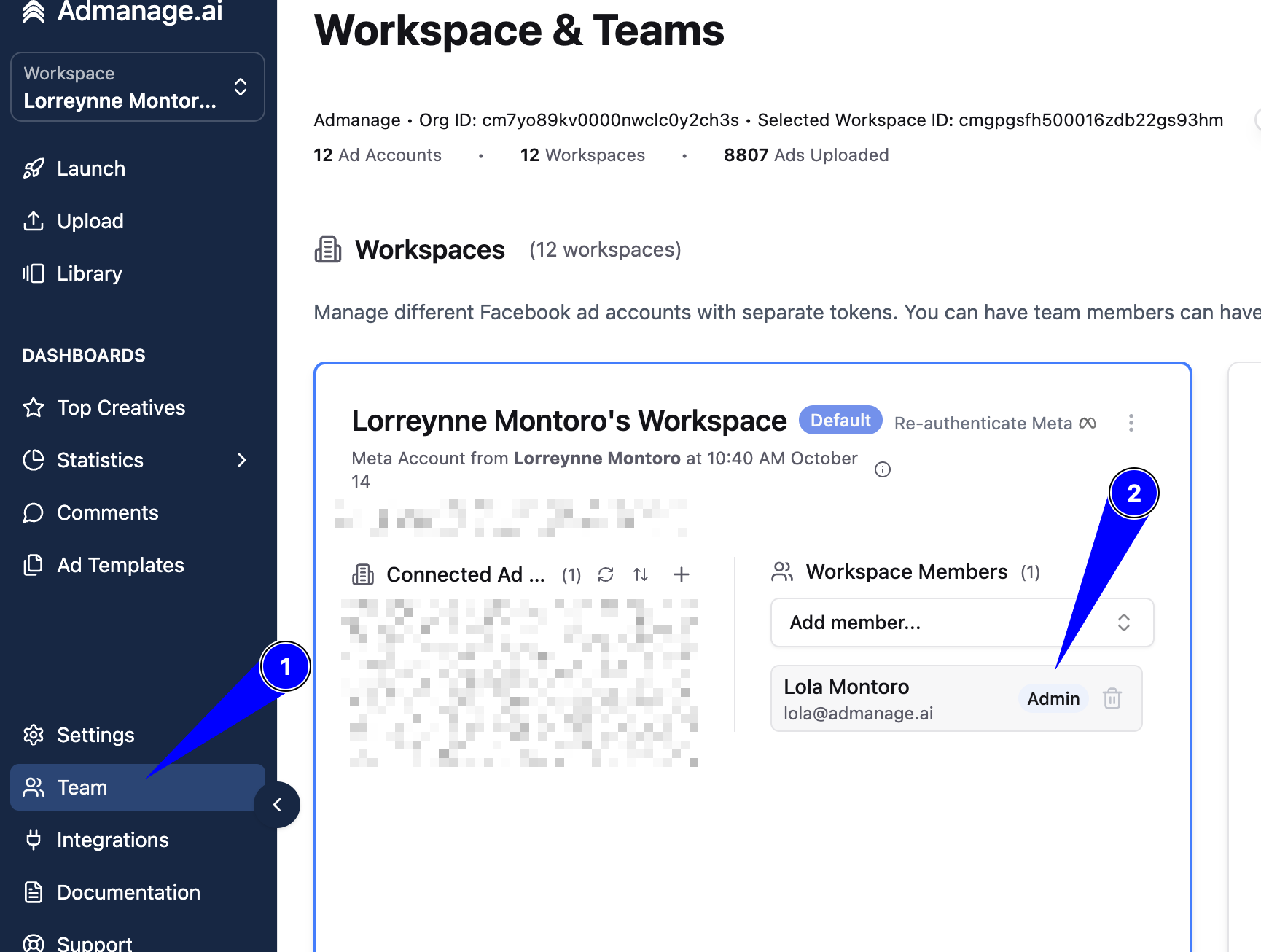
Changing a team member's role is managed entirely within the Team section of AdManage.ai.
Navigate to the Team Section: Locate and click on the Team section.
Locate the Team Member: Scroll through the list to find the team member whose permissions you wish to modify.
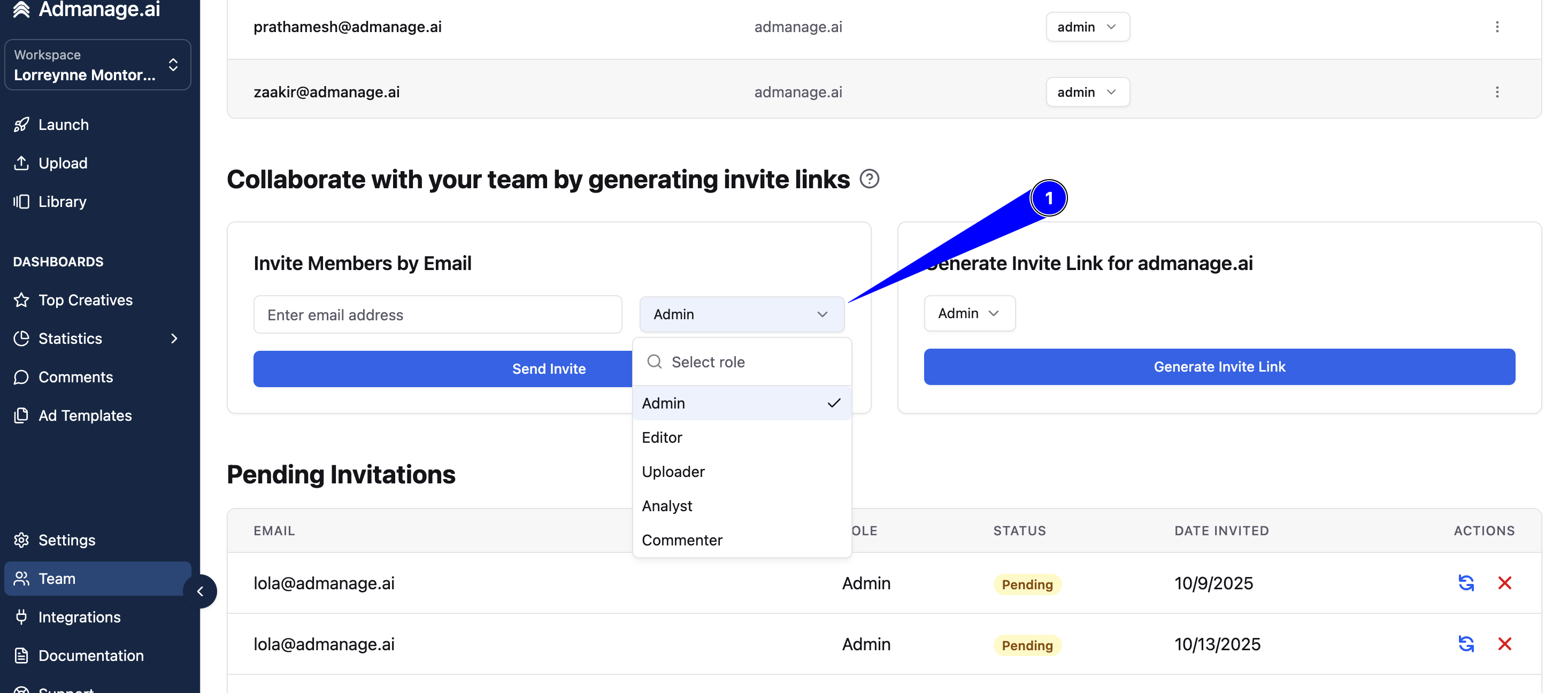
Change the Role: You can directly change their role from the dropdown menu next to their name in the Team section.
Setting Roles for New Team Members
When inviting new members to AdManage.ai, you can set their role from the start:
When using the "add team invitations" section, use the dropdown menu to select the desired role (Admin, Editor, Uploader, Analyst, or Commenter) before sending the invitation.