How to launch ads from Google Sheets to Meta Ads manager
Last updated: May 6, 2026
Step 1: Install the AdManage Google Sheets Extension:
(only the first time you use it, if you already did it, you can skip to step 2: Column Mapping or step 3: Upload Drafts)
1. Create a new Google sheets or use an existing Google ad sheets
Install the AdManage Google Sheets Extension
Here’s a handy tip you can create: https://sheets.new/ that link will auto create a new google sheet for you.
The first part is, you need to add the Admanage extension.
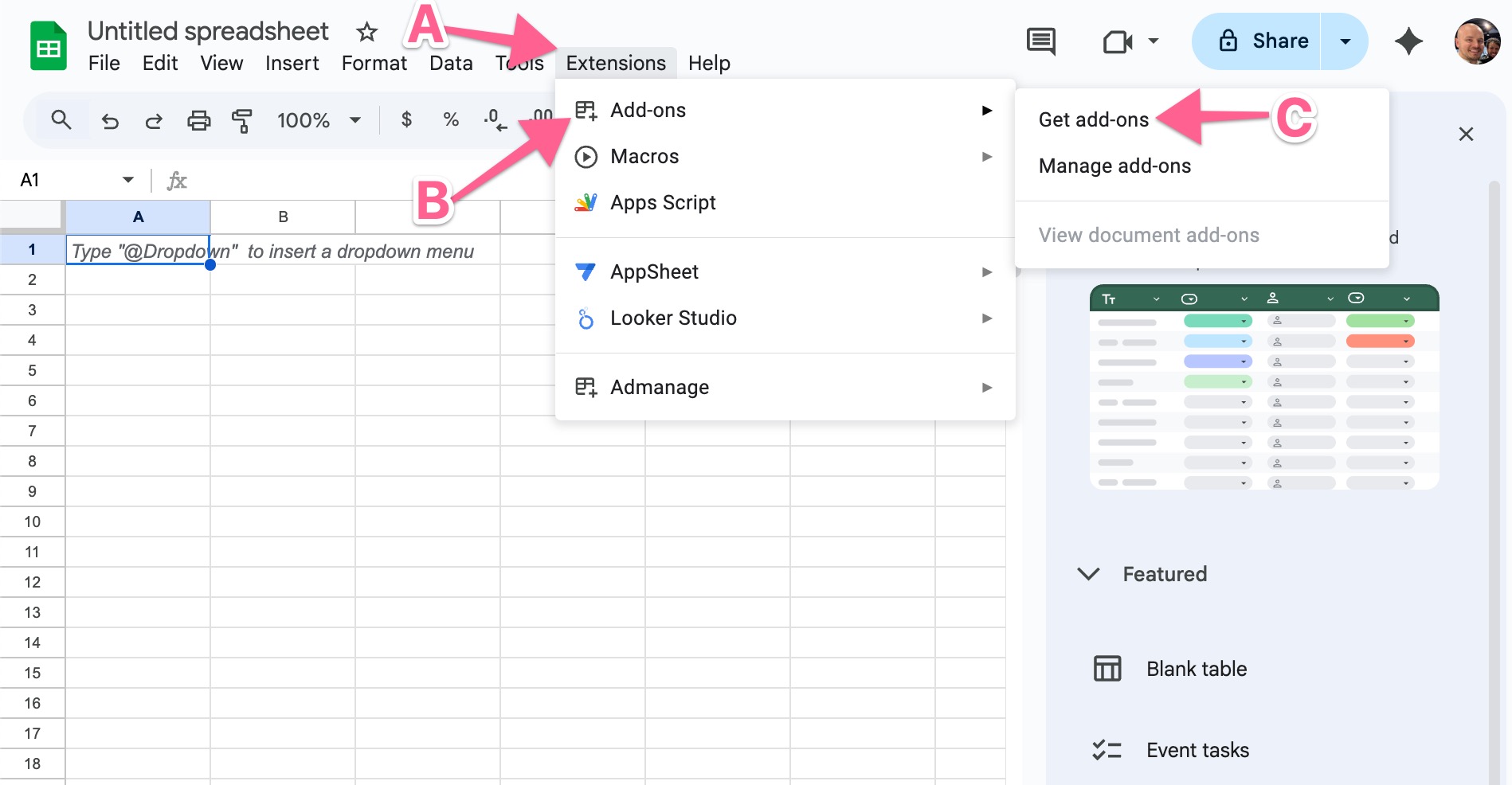
Click on Extensions and then Get add-ons
Search for admanage and install our extension
After Installation:
1. Refresh your Google Sheet
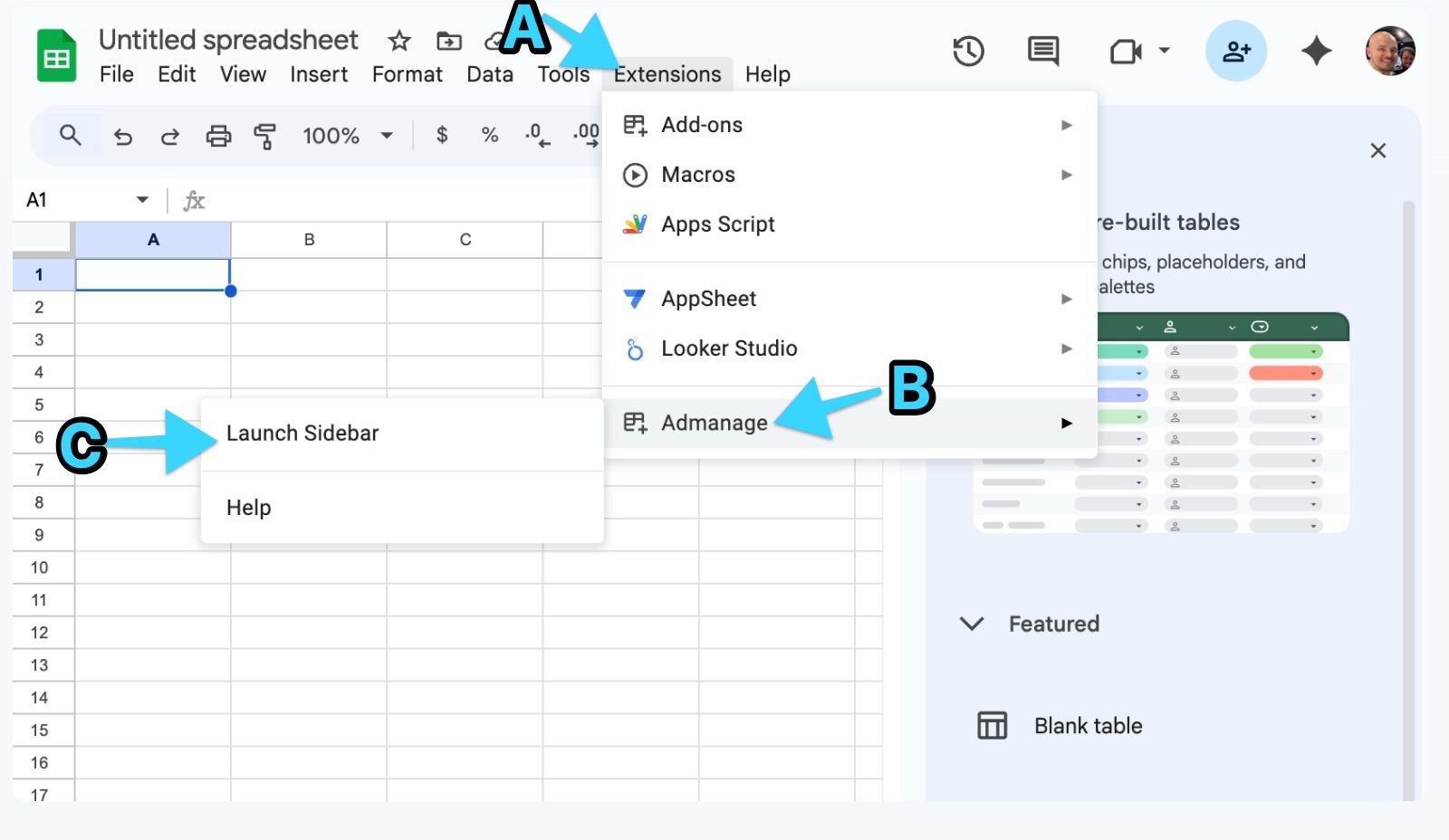
2. Go to Extensions → AdManage → Launch Sidebar to open the integration panel
3. The add-on will automatically attempt to authenticate with your Google account
Step 2: Configure Column Mapping:
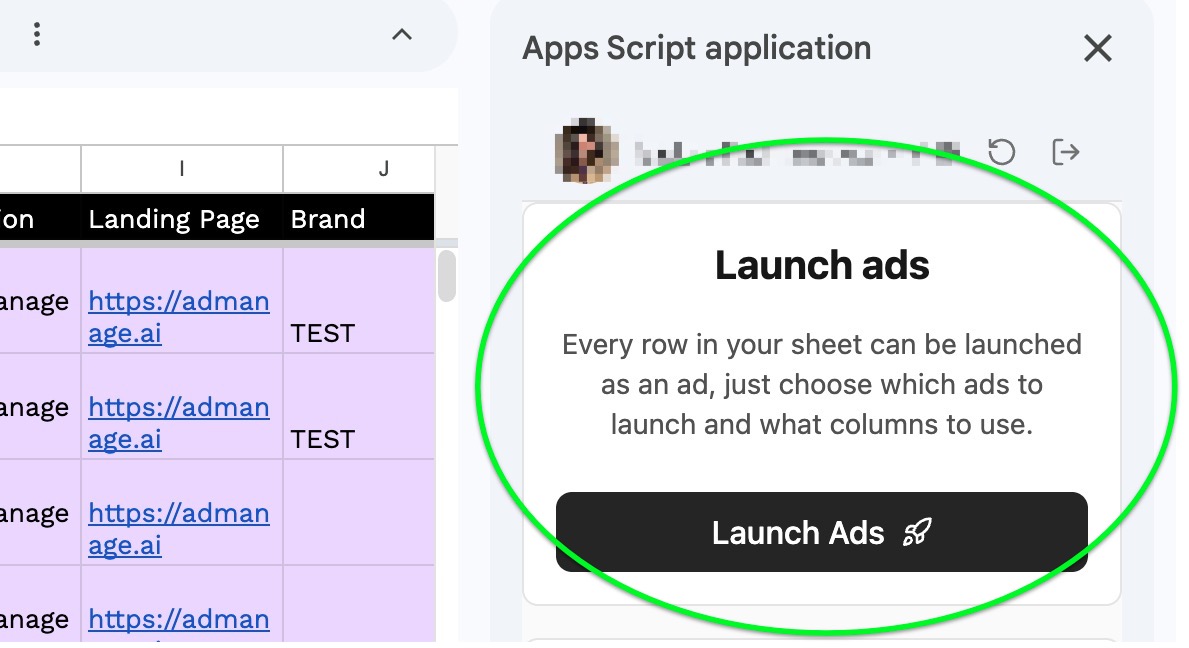
Click "Launch Ads" (this creates drafts, doesn't launch immediately)
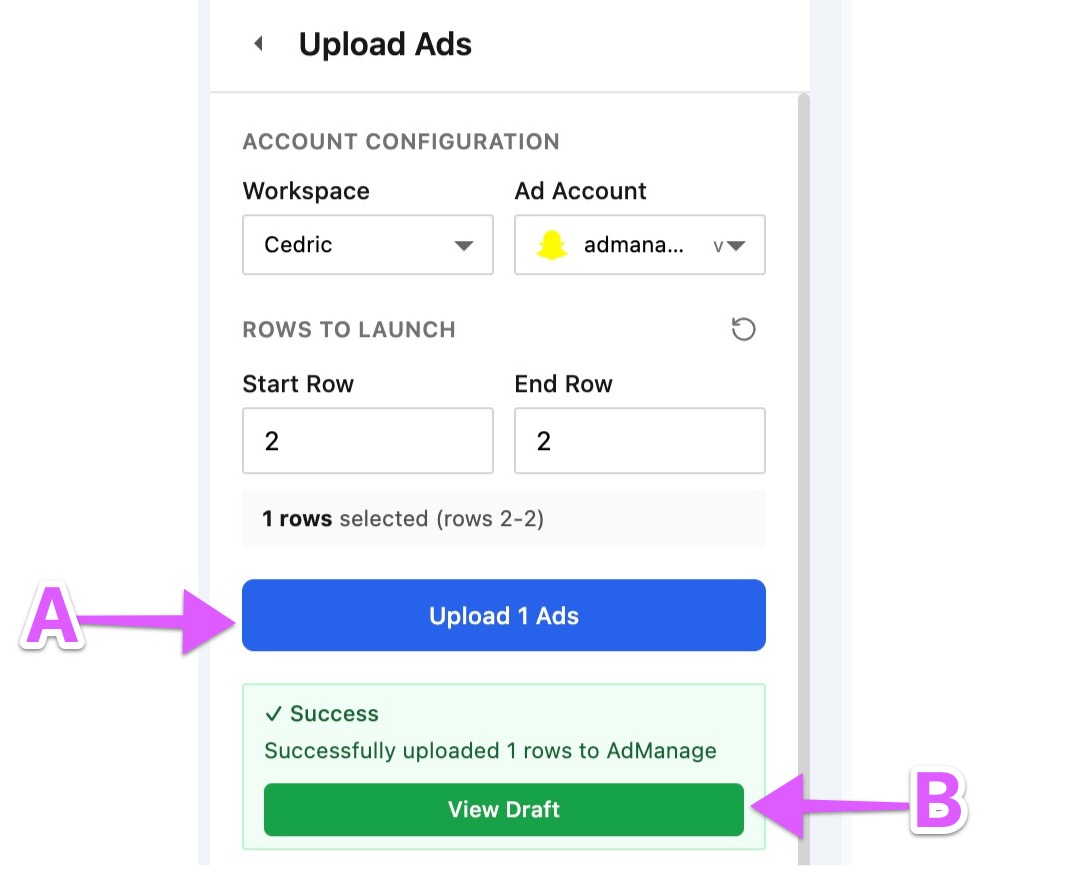
Select your workspace and ad account
Choose which rows to upload (start row to end row)
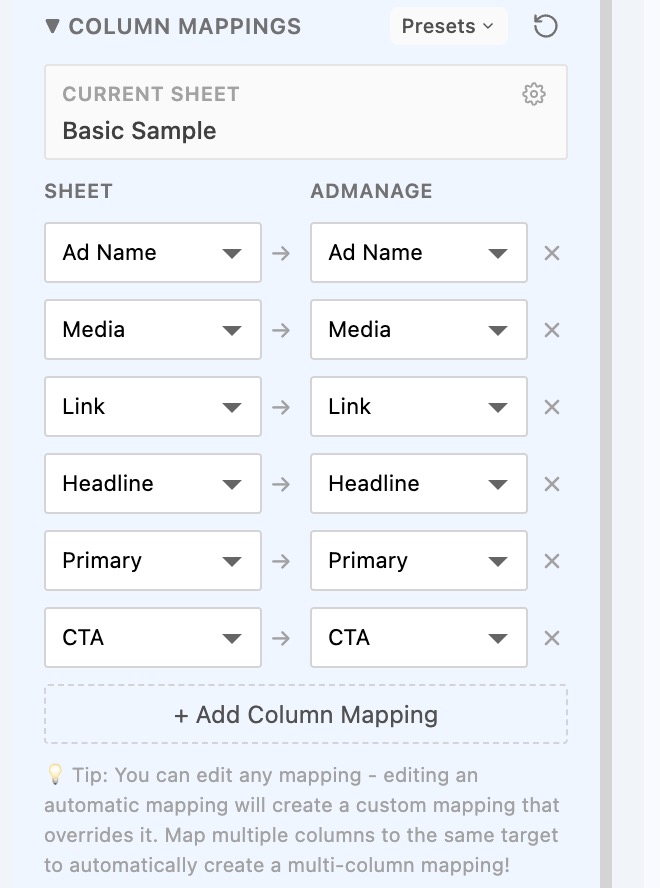
Map your sheet columns to AdManage fields. (e.g., map "Landing Page" column to "Link" field) , the extension can auto-detect mappings or you can set them manually.
Step 3: Upload as Drafts
Click "Upload Ads" to create drafts in AdManage
This pulls all your creative files and ad copy into AdManage as drafts.
Review the drafts in the AdManage web app.
Step 4: Launch your Ads
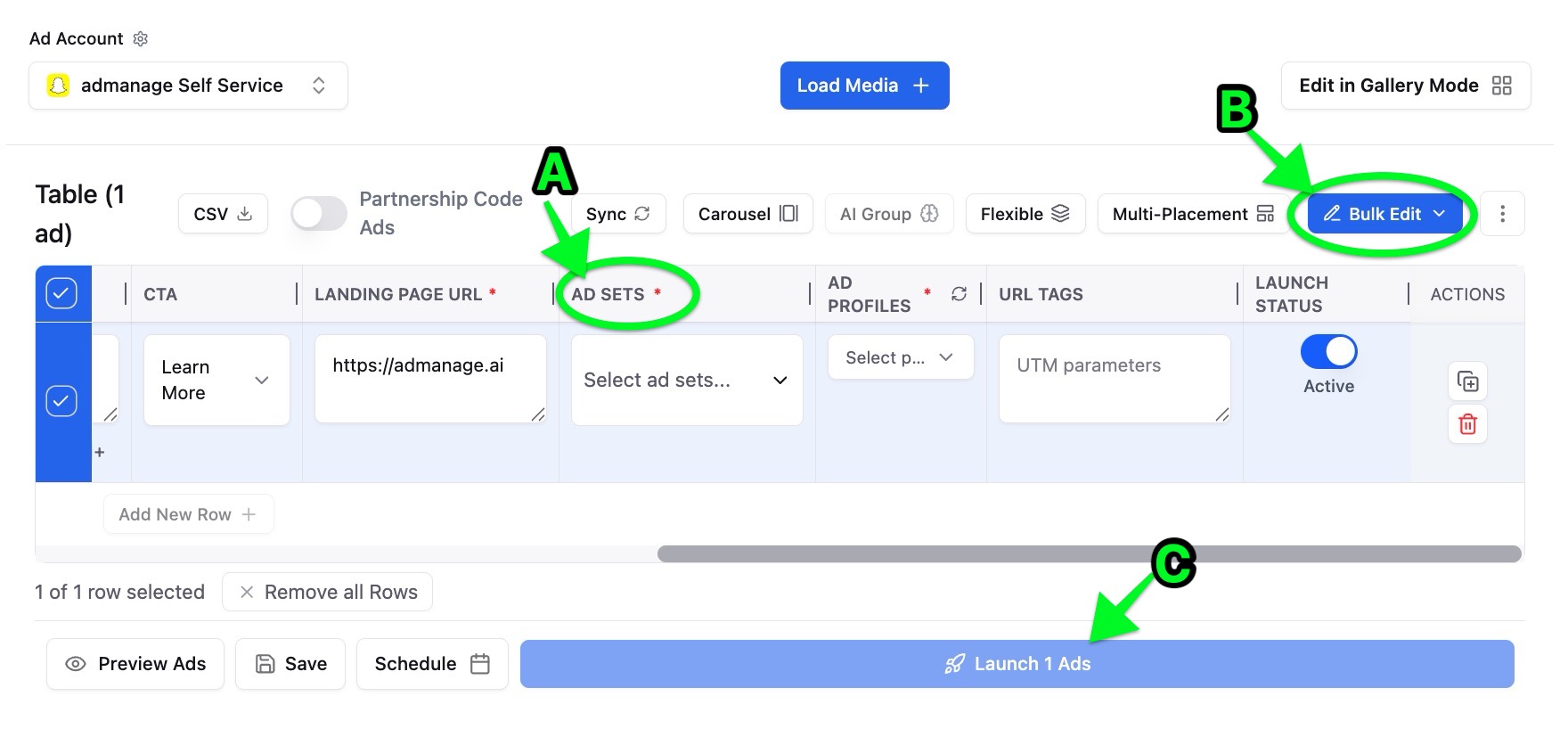
In AdManage, review your drafts.
Select Ad sets for each ad or you can also bulk edit Ad sets.
Configure any additional settings.
Click "Launch" to push the ads live to Meta Ads Manager.
You'll get direct links to view the ads in Meta.
You’ve just launched from Google Sheets straight to Meta Ads Manager. You can customize the columns to add variations, carousels, or any type of ads. Message us for any questions about the process.
Useful insight - When to use this feature:
Bulk launch hundreds of ads at once.
Works with existing Google Drive/Dropbox file storage.
Maintains your current spreadsheet workflow.
Processes uploads in batches (max 50 rows per batch for Sheets launches).