Table mode tips
Last updated: October 30, 2026
Table Mode lets you edit launch rows independently or apply one change to selected rows. It is a launch editor; clearing its rows does not delete ads you have already launched.
How do I open and edit a table?
Open Launch and choose Table Mode.
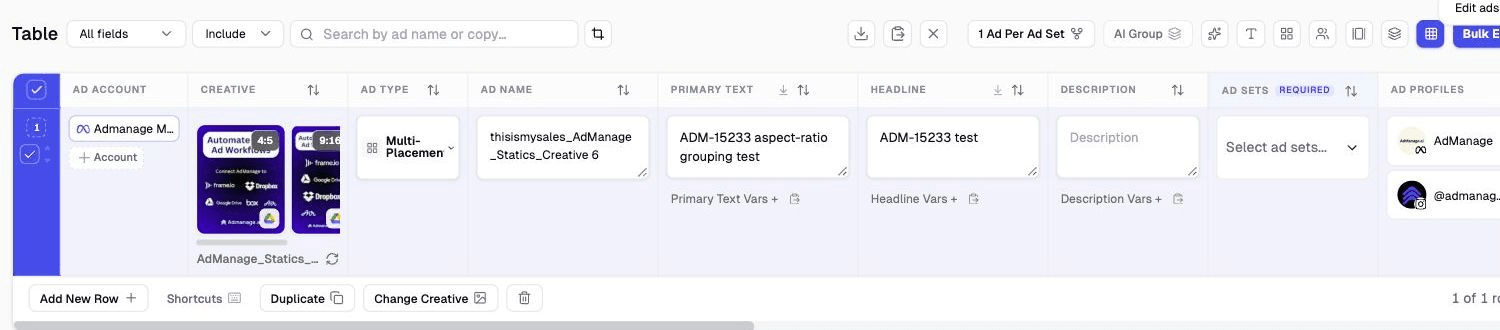
Load media, a saved draft or an existing batch as a draft.
Review the ad type and the account/ad sets on each row.
Edit an individual cell for a row-specific change.
Select several rows and use Bulk Edit when they should share a value.
The table guide demonstrates Duplicate, the header selection checkbox, Bulk Edit, and saving a draft. A duplicated row keeps the source setup and can then be edited separately.
For live ads, use the edit workflow in Manage. Loading an old batch into Launch prepares another launch; it is not automatically a live edit of the original ads.
How do I keep important columns visible?
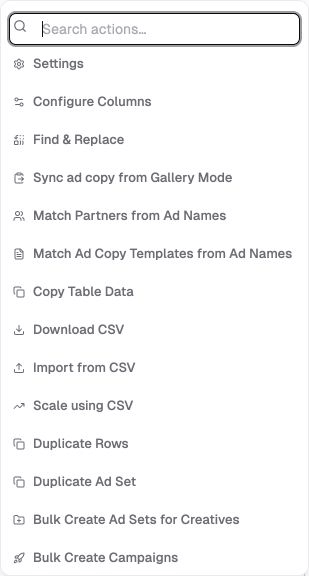
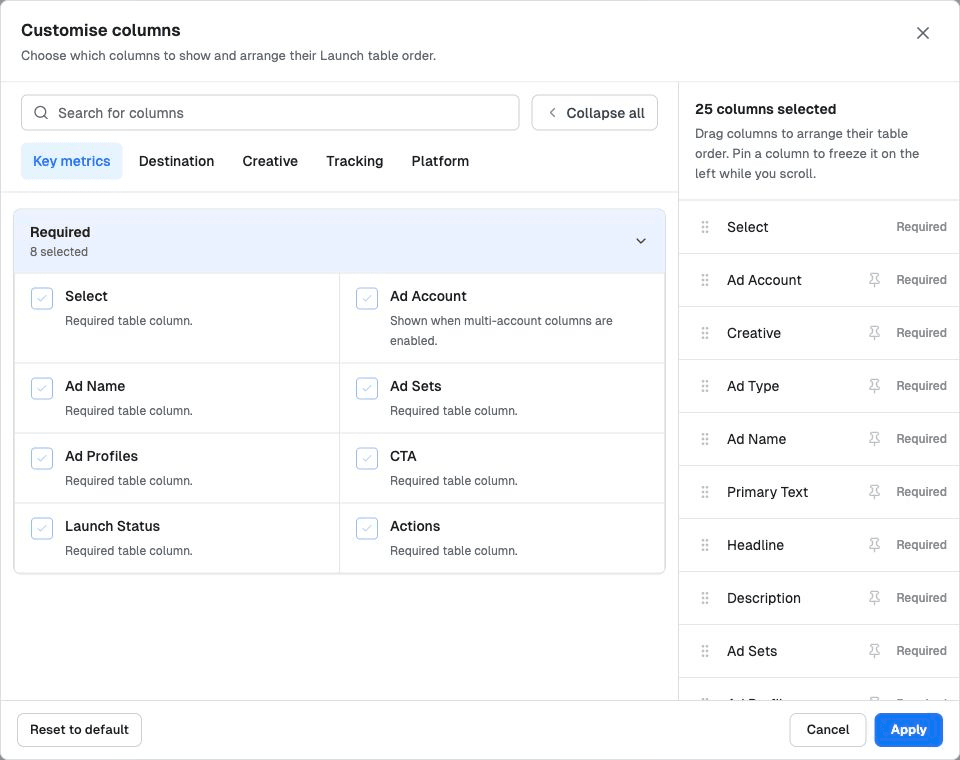
Open Configure Columns to show the fields you need. Right-click a column header and choose Freeze column to pin it on the left while scrolling. Use Unfreeze column or the pin control in Configure Columns to undo that choice.
Show account, ad sets, identity, URL/tracking and relevant format columns when reviewing a large import. A hidden column can still contain a value, so do not interpret hidden as unset.
Can one row launch into multiple accounts?
The table edit menu includes the multi-account setting. When enabled, the Ad Account column appears. Use + Account on a row, choose an available account and select that account's own ad sets.
Inspect each account assignment. A destination Page, pixel or ad set from one account is not automatically valid for another. Review the number of expanded ads and their paused/active status before launching.
What about formats, copy and imports?
Check single, multi-placement, carousel and existing-post rows separately. For a carousel, inspect card order and links. Existing Post ID reuse can disable copy edits. Template and CSV/Sheets imports can fill fields that are not currently visible.
After changing modes or reloading a draft, inspect the final rows instead of assuming every default was copied as expected. Save a draft before making a large restructuring change.
Does Clear all rows affect live ads?
No, it clears the editor's table. Read the confirmation carefully and save a draft first if you need the current setup later.
Quick answers
Does Clear all rows delete my live ads? No.
Can I freeze columns? Use Freeze column from the header menu.
Does Bulk Edit affect every row? It applies to the selected scope.
Does loading a batch as a draft edit the original ads? No, review it as a new launch setup.