How to Launch Ads from Files on Your Computer / drive with Admanage.ai
Last updated: April 10, 2026
This guide walks you through the simple process of uploading creative files directly from your computer to your Admanage.ai Media Library and then using them to Launch your ads.
Step 1: Open the Ad Launcher
Log in to your Admanage.ai dashboard and navigate to the Ad Launcher section.
Step 2: Click on Load Media
Once inside the Ad Launcher, click the Load Media button to open the upload area. Alternatively, you can drag and drop files directly into the box from your computer.
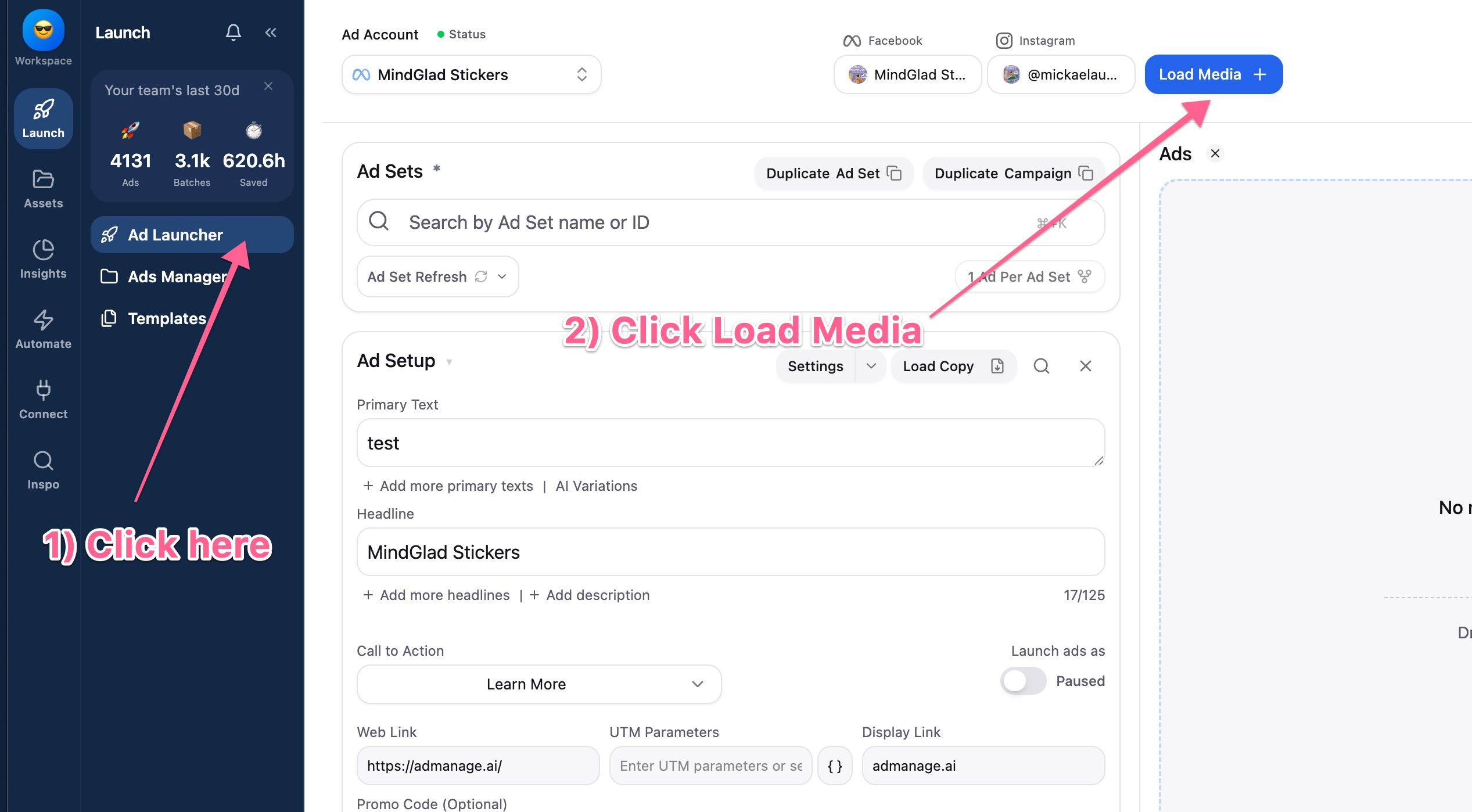
You can also drag directly within the box from your computer.
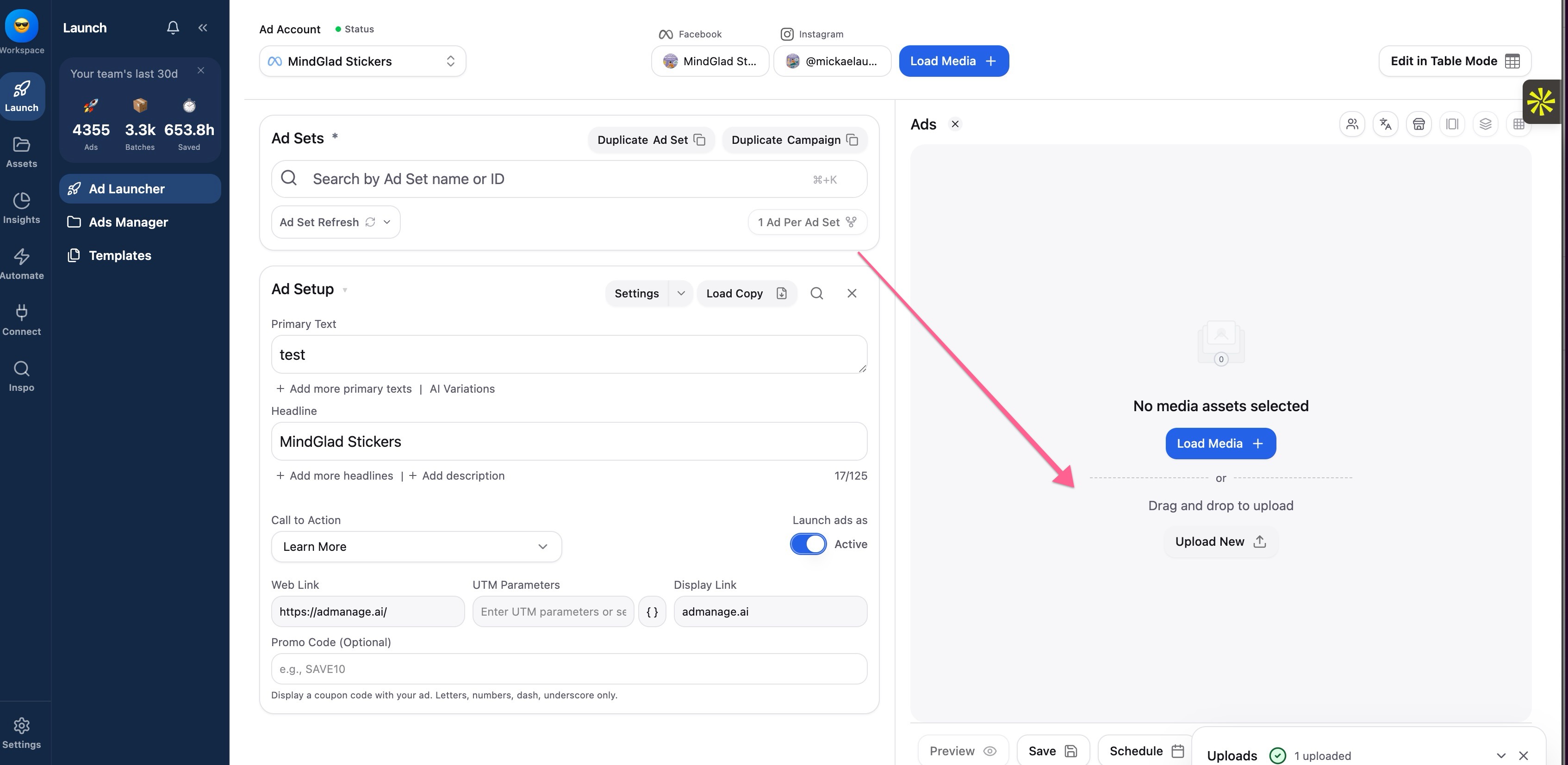
Step 3: Upload Your Creative File
Click the Upload Media option to open your device's file browser. Select the creative file you want to use for your ad.
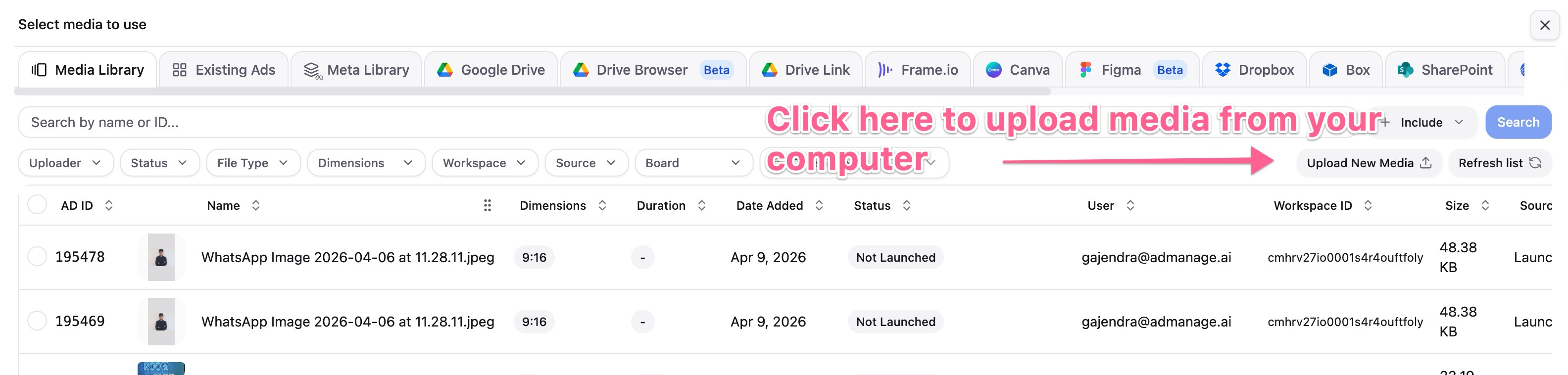
You can upload new media via the upload media option this will pick media from within the device.
Step 4: Or Import from Google Drive or Other Sources
If your creative is stored in the cloud, click on the relevant tab to access your Meta Library, Google Drive, or any other connected platform and select your file from there.you can also use other options such as Meta library, google drive and others in the tab to pick creatives.

Step 5: Select Your Creative from the Media Library
A pop-up window will appear showing your Media Library. Click on the creative file you just uploaded or imported to select it.
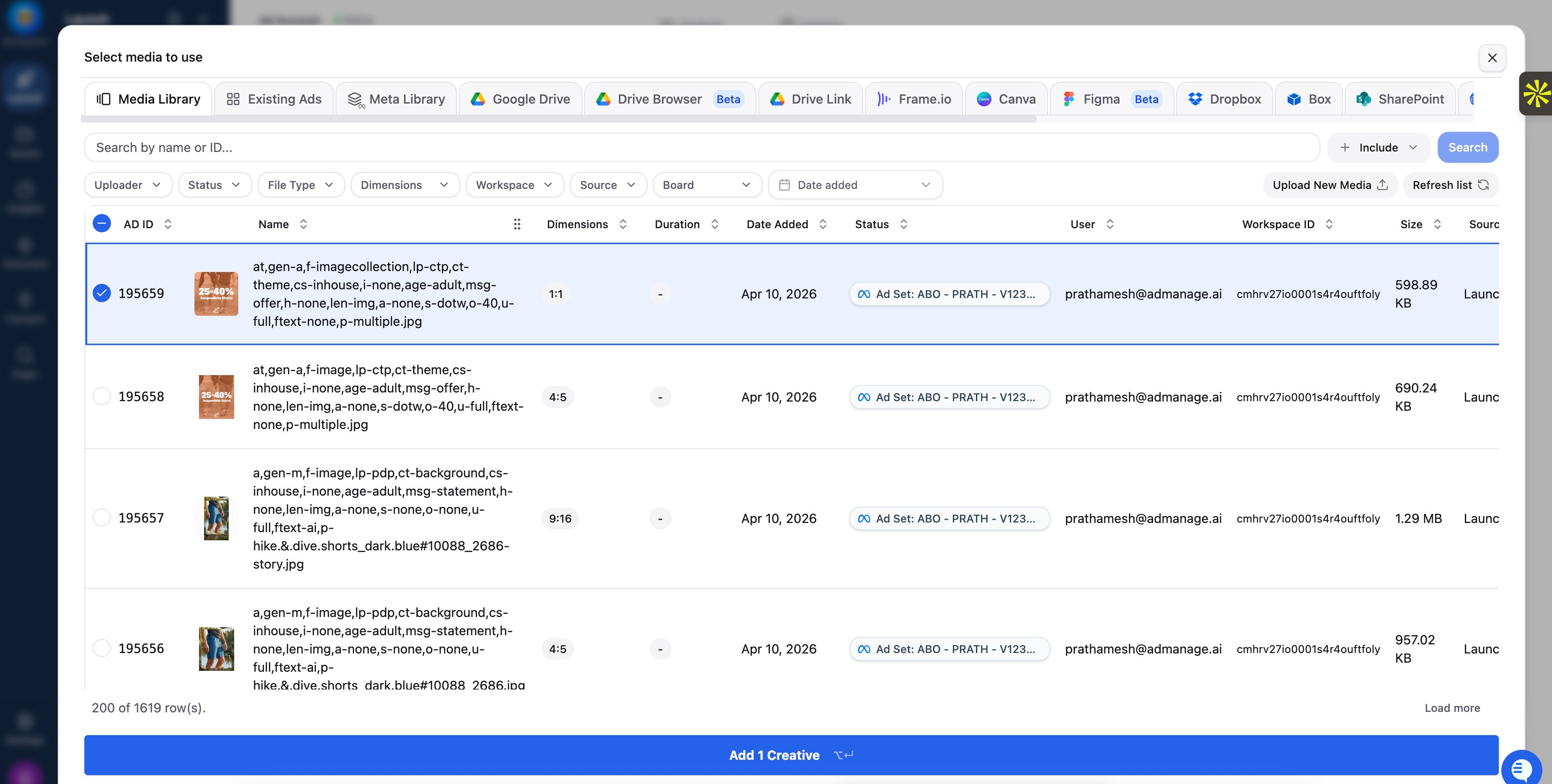
Your creative is now attached to your ad! You can continue setting up the rest of your ad details (primary text, headline, etc.) and then click Launch Ads to complete the process!