How to Launch Carousel Ads
Last updated: October 21, 2025
Launching dynamic carousel ads in AdManage.ai is a straightforward process that allows you to showcase multiple products or features within a single ad unit.
Load Your Creative Media
Click the "Load Media" button to open your file selection.
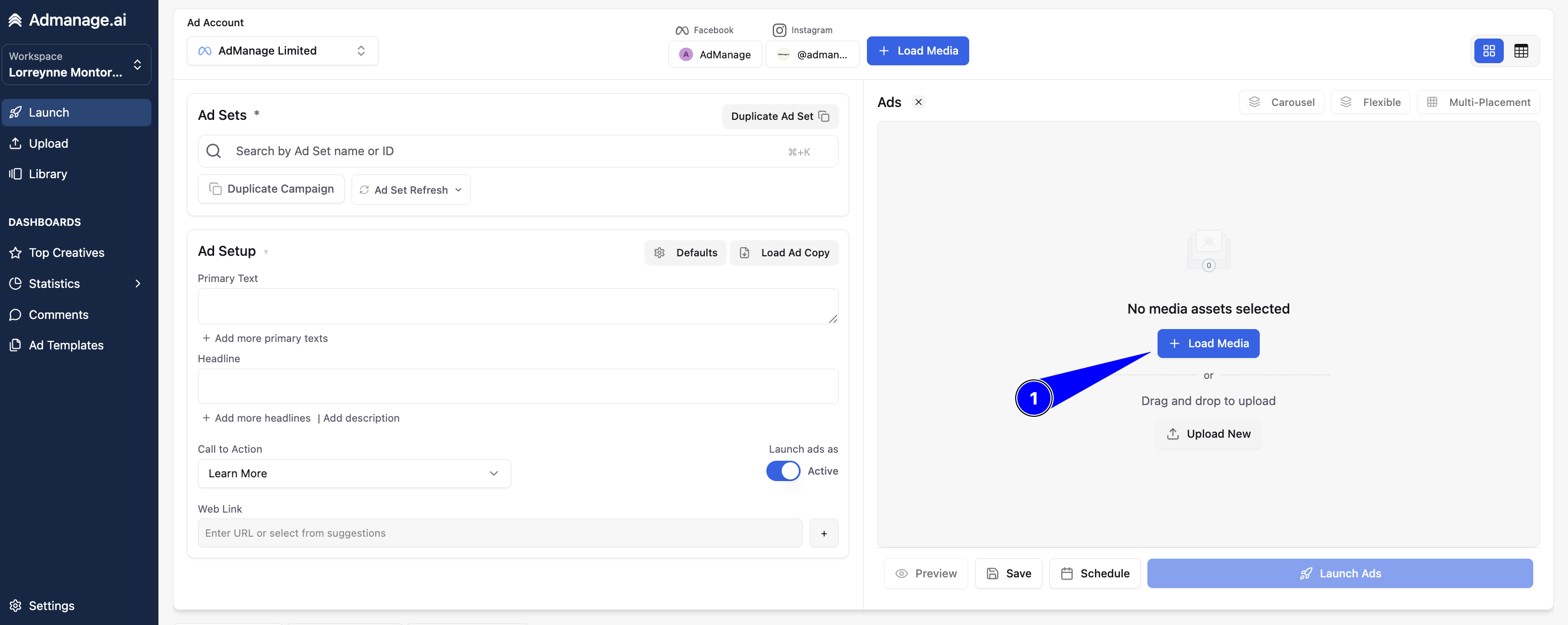
Select all the images or videos you wish to include in your carousel.
Pro Tip: Hold Shift to easily select multiple files at once.
Open Carousel Settings
Click the "Carousel" button located in the top right corner of the launch interface.
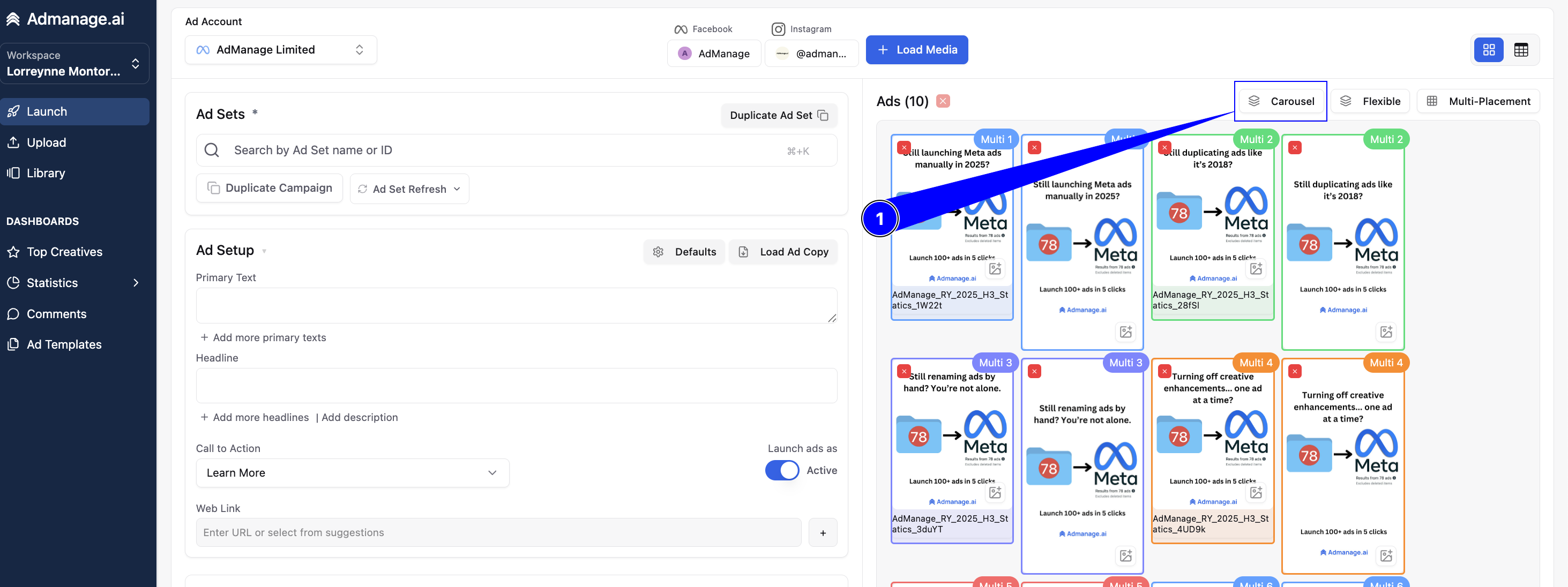
This will open the "Set Carousel Ads" dialog box.
Group and Customize Your Cards
Group Cards: Click to select the individual creatives you want to link together as a single carousel.
Order Cards: Arrange the cards in your preferred sequence by dragging and dropping them.
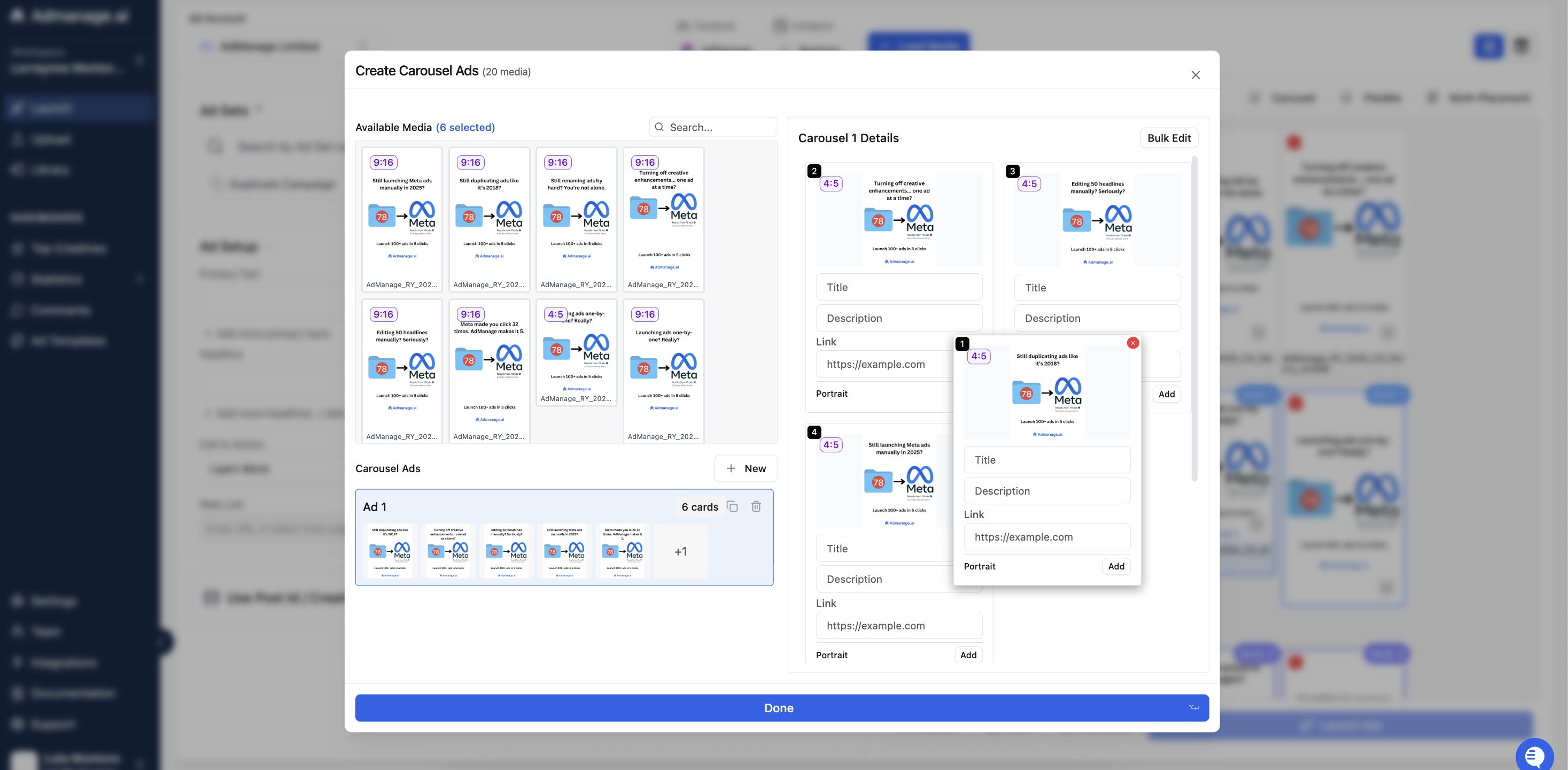
Customize (Optional): For each card, you have the option to add a unique:
Headline
Description
Link
Finalize and Launch
Click "Done" once you have finished configuring your carousel cards and settings.
Click "Launch Ads" to push your new carousel campaign live.
Pro Tips for Optimal Carousel Setup
Tip Category | Detail |
Automatic Ordering | For simplified setup, pre-name your files sequentially (e.g., |
Card Limit | Remember that carousels can have a maximum of 10 cards. |
Troubleshooting Display | If you encounter any display errors from Facebook after launching a custom placement carousel, try clicking "See In Meta Ads Manager" and then manually clicking "Republish" from within Meta Ads Manager. |