How to Launch Flexible Ads in AdManage.ai
Last updated: October 21, 2025
Flexible Ads allow you to bundle multiple creative variations into a single ad unit. Meta then automatically optimizes delivery by showing the best-performing variation to your audience, making it an excellent tool for organized creative testing.
Load Your Creative Media
Click the "Load Media" button to begin file selection.
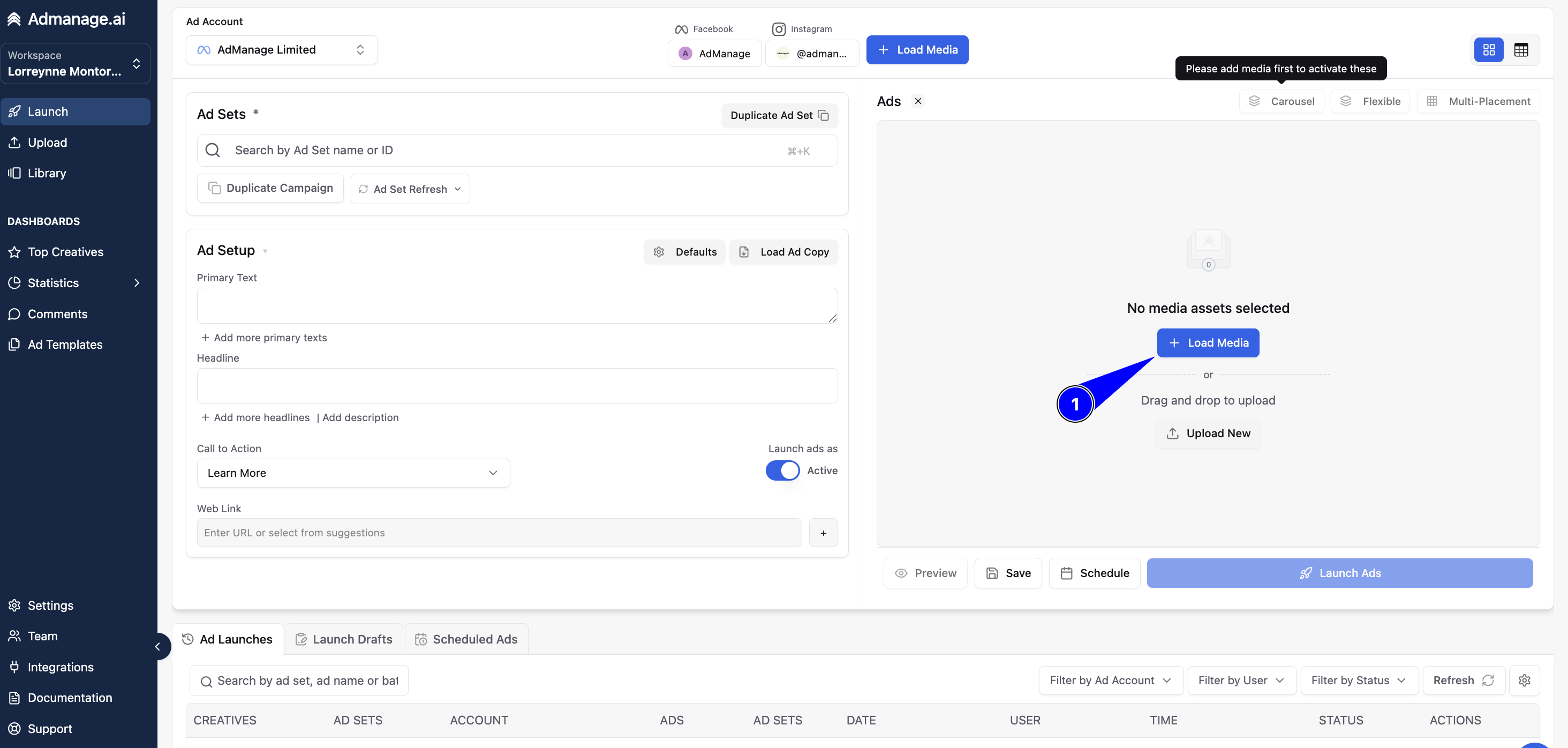
Select all the images or videos you intend to use in your flexible ad groups.
Tip: Hold Shift to select multiple files quickly.
Open Flexible Ads Settings
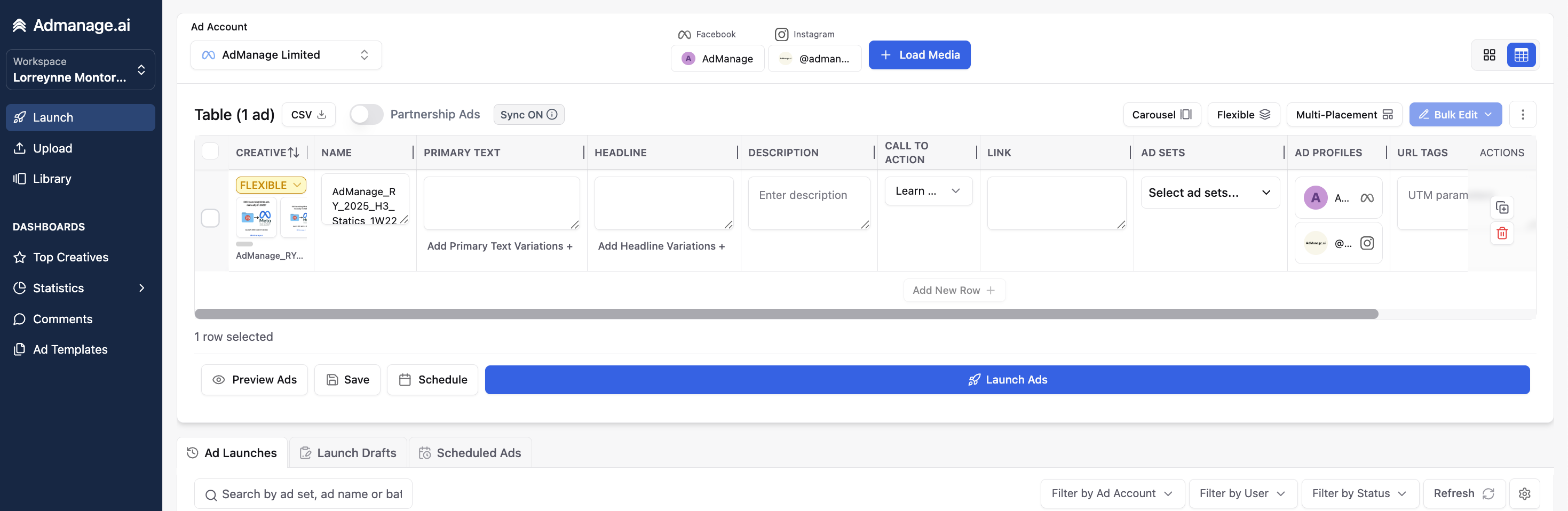
After selecting your creatives, locate and click the "Flexible Ads" option in the top right corner of the interface.
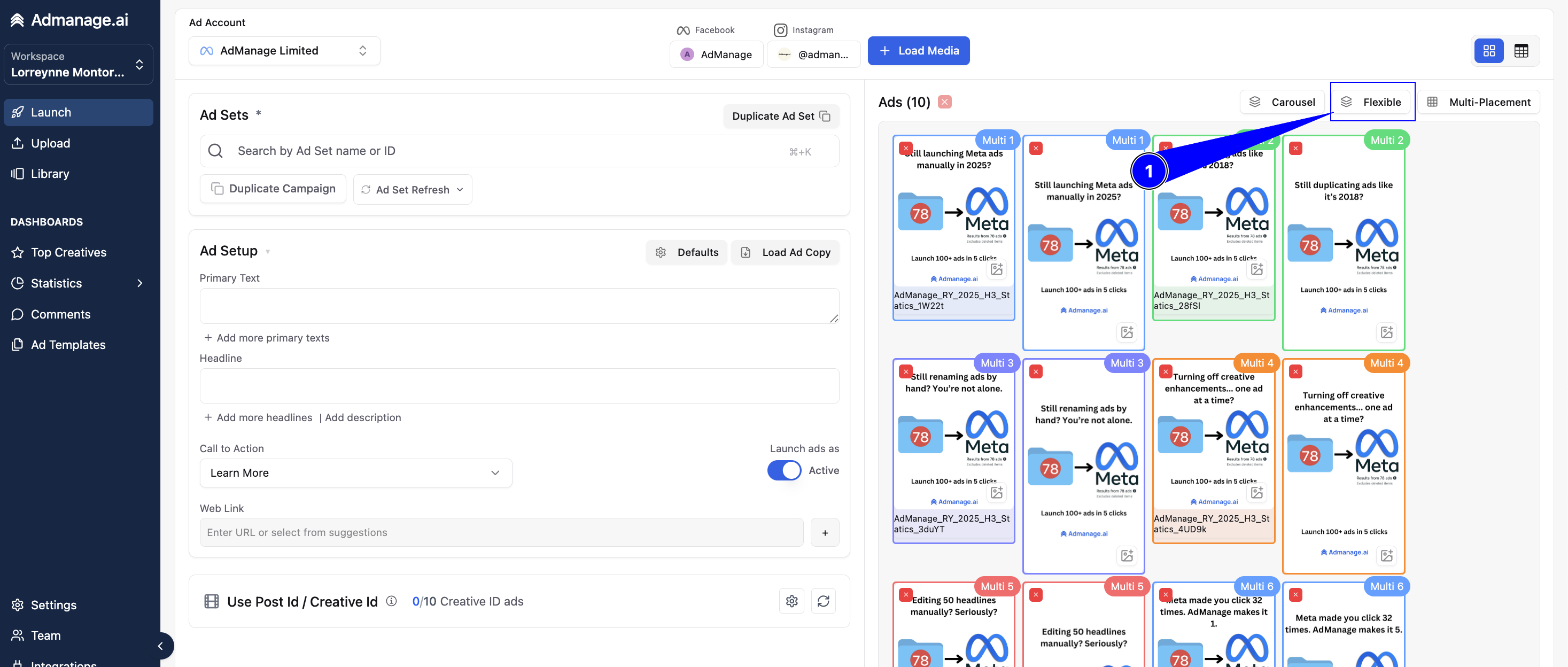
This action opens the "Set Flexible Ads" dialog box.
Group Your Creatives
Select Creatives: Click on the individual creatives you want to bundle together into a single flexible ad group.
Create Multiple Groups: You can repeat this process to select different sets of creatives, thereby creating multiple distinct flexible ads.
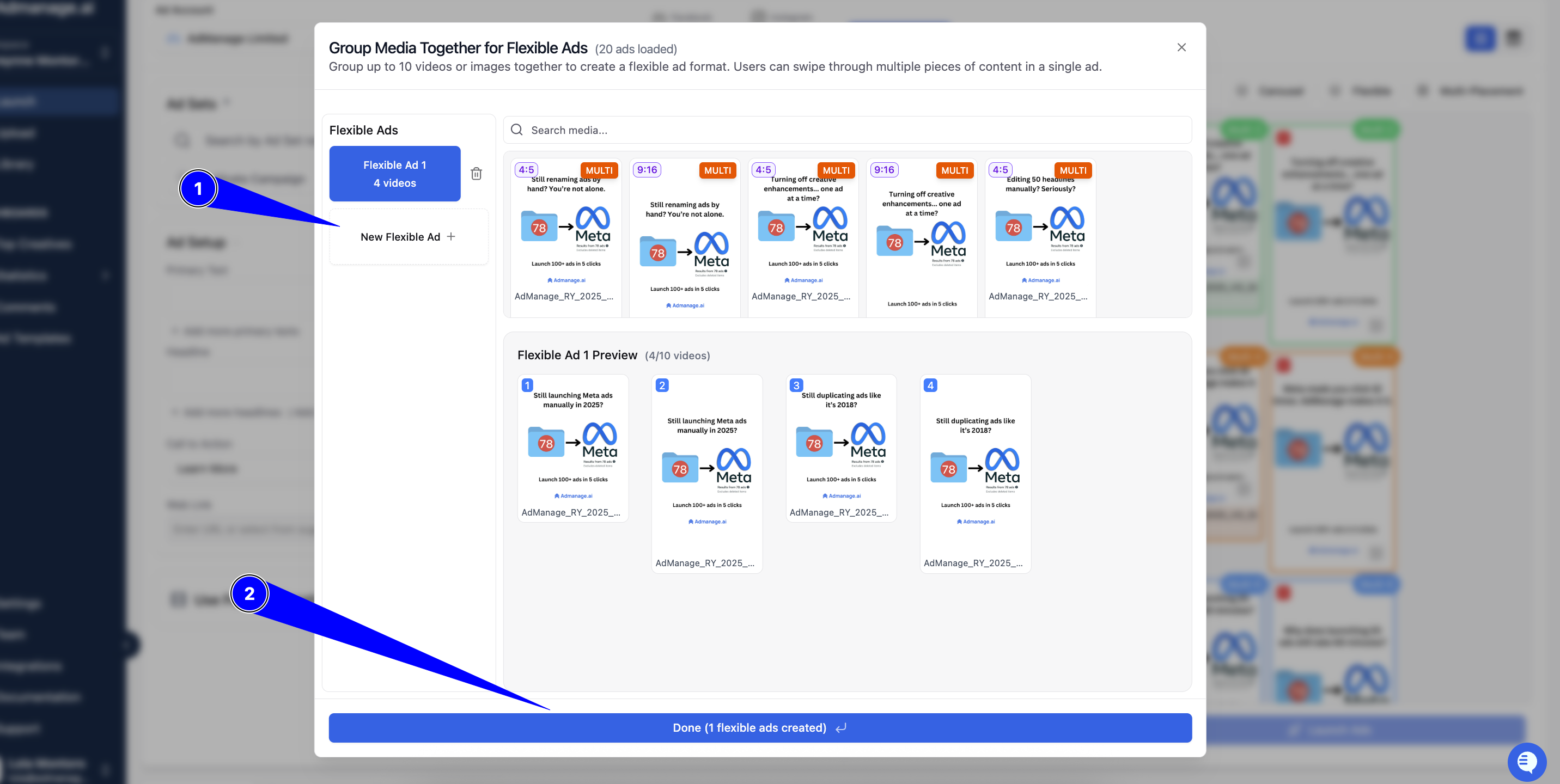
Finalize and Launch
Click "Done" once you have finished grouping all your desired creatives.
Continue with the standard launch procedure: select your target ad set(s).
Click "Launch Ads".
Flexible Ads for Granular Control
Table View Option: If you need more control, you can also set up flexible ads using the Table View.
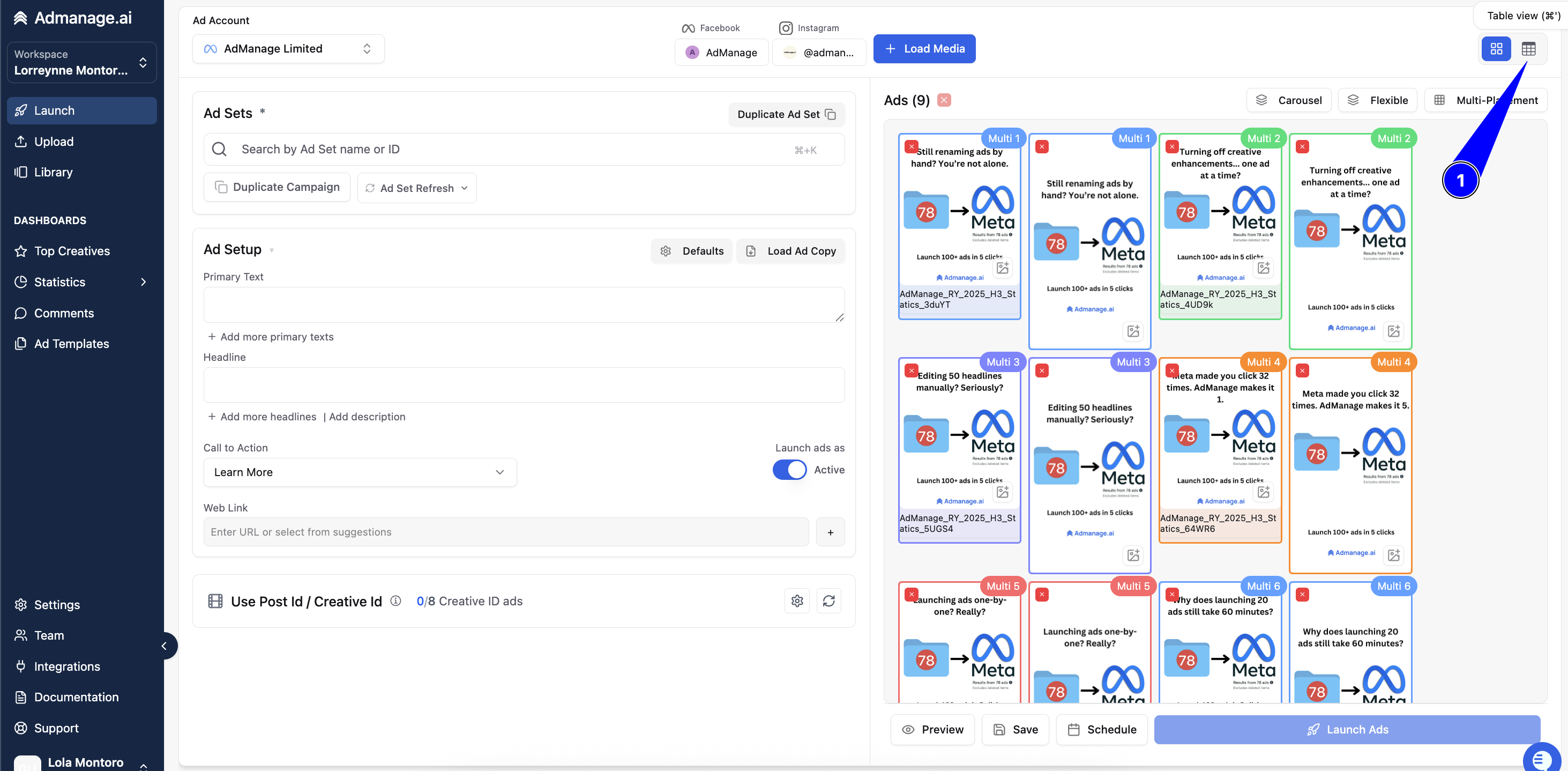
Granular Control: This view allows you to bulk edit ad copy or apply specific settings to each distinct flexible ad group, offering a more granular approach to management and testing.
Key Benefit
Flexible Ads are particularly useful for testing multiple creatives simultaneously while keeping them neatly organized and reported as a single ad unit in your AdManage dashboard.