Connect the AdManage MCP to Claude or ChatGPT
Last updated: October 30, 2026
Connect AdManage through OAuth so your assistant can inspect the accounts you authorize. New MCP connections default to read only. Ad launches and edits require write access and your account permissions; media imports into your own library are allowed in read-only mode.
How do I connect Claude?
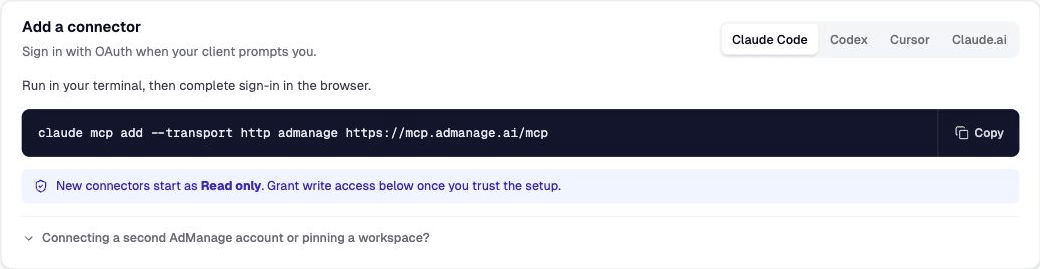
Open the MCP setup guide.
In Claude, open Settings → Connectors and add a custom connector.
Name it AdManage and copy the server URL from the guide.
Connect and sign in with the intended AdManage account.
Ask the assistant to identify the active organization and workspace before using account data.
The guide provides the current connection details and supported client tabs. Copy the URL there rather than using an old screenshot or a token from a support conversation.
How do I connect ChatGPT?
On ChatGPT web, open Plugins, select the plus button and Add custom MCP server. Name it AdManage, enter the server URL copied from the AdManage guide, choose OAuth, review the connection and create the plugin. Install it, then select it with @ in a conversation. Workspace security settings can restrict custom servers.
Before relying on the connection, run a small read-only request and confirm the returned organization and account. If the OAuth flow does not complete, use the verified client setup on the AdManage MCP page or contact support with the error.
Why can it read but not launch?
Open MCP Access to inspect the connection. Read-and-write access is required for launches, ad edits, deletions and draft writes. Media uploads/imports into your own library are an explicit exception allowed in read-only mode. Platform permissions and the user's role still apply; enabling a connector does not grant an Analyst permission to launch ads.
Keep read only if you only want analysis. For a first write workflow, ask for a reviewable draft and an explicit paused status where appropriate, then inspect the proposed account, destination and action before approving it.
Can I use multiple organizations?
Ask the assistant to list available organizations, select the intended one, and confirm the active connection. Then choose a workspace within that organization. Session organization switching does not change every other connector or the website's selection.
For separate AdManage logins, use separately labelled connector URLs from MCP Access and authorize each with the corresponding login.
What if it fails?
Check the connection status, access mode and active workspace first. For a platform permission error, correct the Meta/TikTok connection in AdManage. For a usage error, read the returned limit/reset message rather than repeatedly retrying.
Do not assume unlimited daily usage. Service and request limits can apply; follow any retry/reset information in the returned error and contact support for planned high-volume workflows or plan-specific allowances.
Quick answers
Do new connections launch immediately? No, the default is read only. Check the access you approve during OAuth.
Does read-and-write override my role? No.
Can I use multiple organizations? Select an available organization and confirm the active workspace.
Should I paste my Meta token into chat? No, use the supported authorization flow.