Launching Ads Using Dropbox
Last updated: October 20, 2025
AdManage.ai offers two primary methods for utilizing your Dropbox content in your ad campaigns, accommodating both individual creative selection and bulk uploads.
Method 1: Direct Dropbox Integration (Recommended for Single File Selection)
This method allows you to browse and select media directly within the AdManage interface after connecting your Dropbox account.
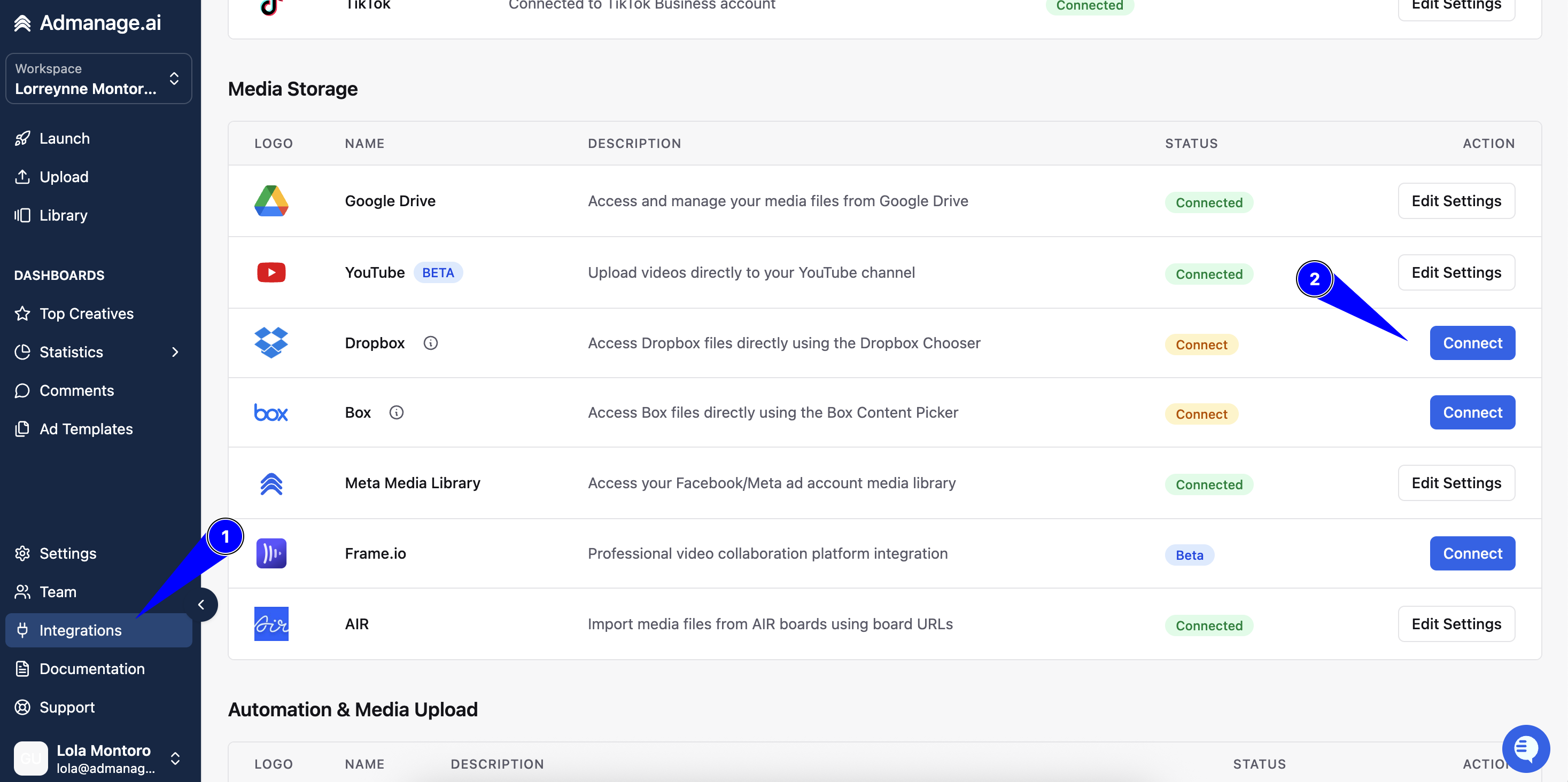
Connect Dropbox: Navigate to the Integrations section in AdManage.ai and connect your Dropbox account.
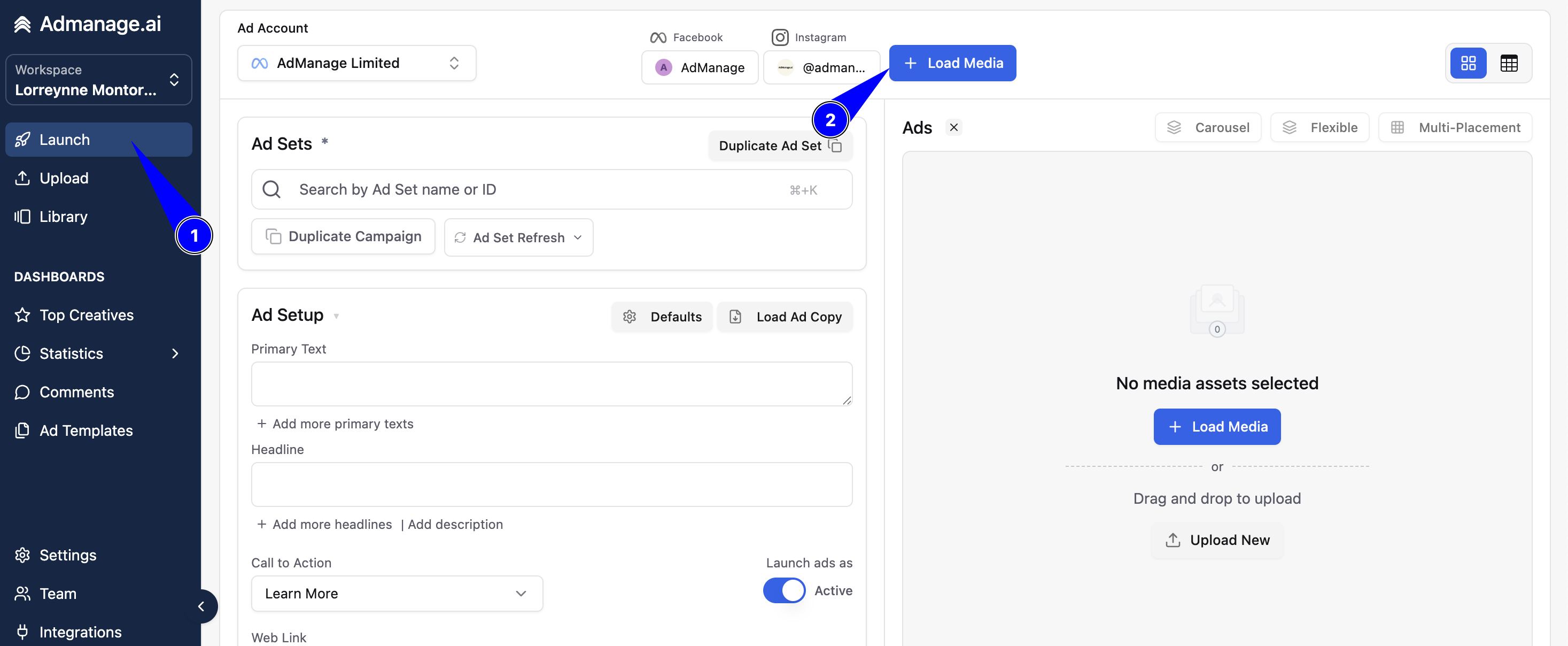
Access Media Loader: Go to the Launch page for your campaign and click "Load Media."
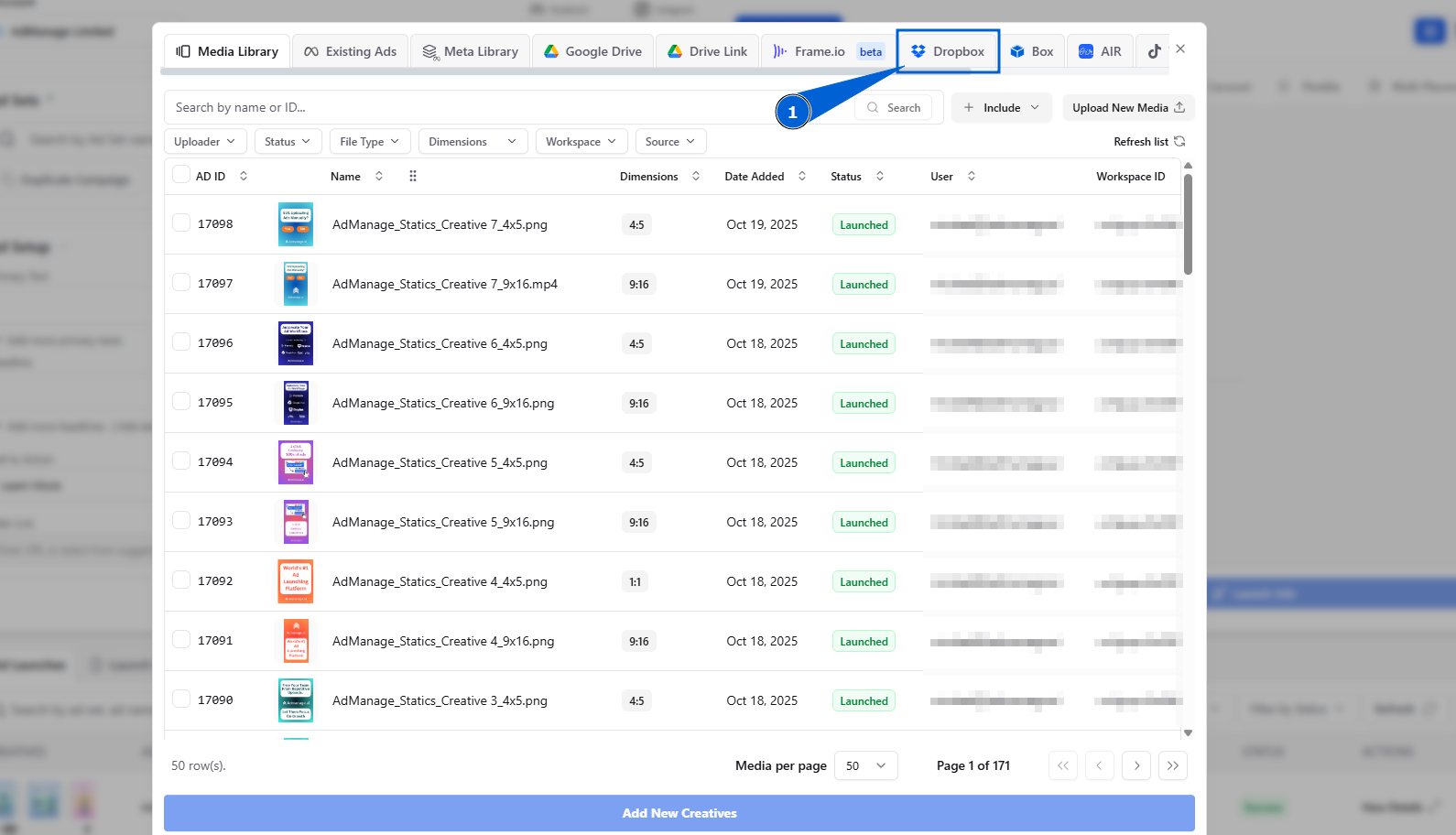
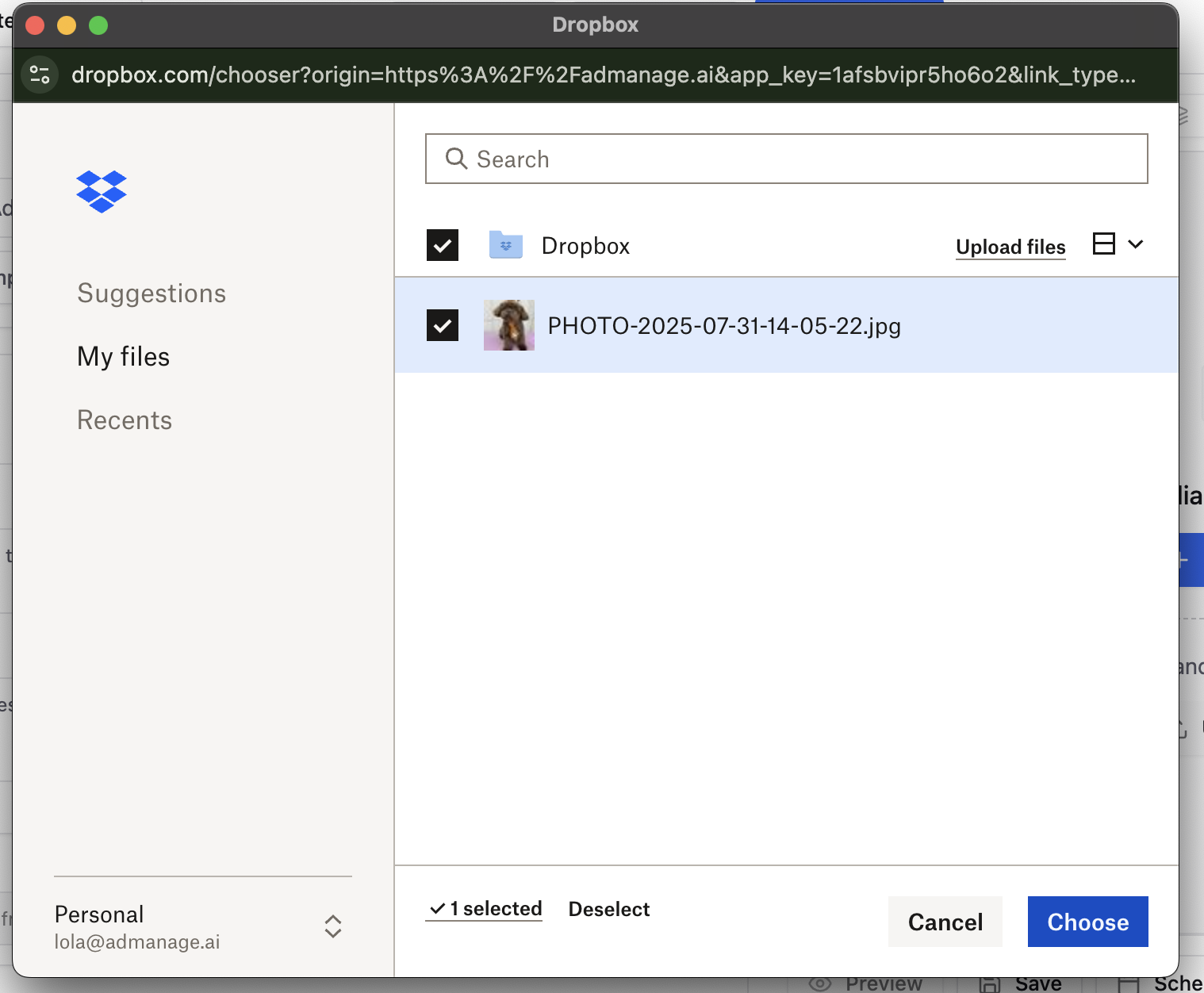
Select Media: A "Dropbox" tab will appear at the top of the media loader. Click this tab to browse your Dropbox folders and select your desired files directly.
Method 2: Using Modified Dropbox Links (Ideal for Bulk on Google Sheets Uploads)
This technique is essential when performing bulk uploads or referencing creatives directly within a Google Sheet template.
Get the Share Link: Obtain the standard share link for your desired file from Dropbox.
Modify the URL: Edit the end of the URL to force a direct download. Change the existing suffix from:
$$\text{?dl=0}$$
to:
$$\text{?dl=1}$$
Use as Creative Source: Input this modified link as your creative source URL in your Google Sheet.
Note: If you experience any issues with the Dropbox functionality, be assured that the AdManage team is actively working on improvements to the integration.