How to Launch Multi-Format Ads in AdManage.ai
Last updated: October 17, 2025
AdManage.ai supports launching multi-format ads, allowing you to use a single creative concept across different placements (e.g., Feed, Stories) by grouping related creative files. This can be done automatically or manually.
Automatic Grouping
AdManage.ai can automatically group creatives when their filenames follow consistent, recognizable patterns.
Recognition Criteria: Multi-format ads are automatically recognized as the same creative when their filenames are identical except for a designated format identifier.
Common Identifiers: The system can detect approximately 38 different naming conventions;
Example: Files named
"creative\_name\_4x5.jpg"and"creative\_name\_9x16.jpg"will be automatically grouped together.
Manual Grouping
If your filenames do not adhere to the automatic grouping conventions, you can manually combine them into a multi-format ad unit:
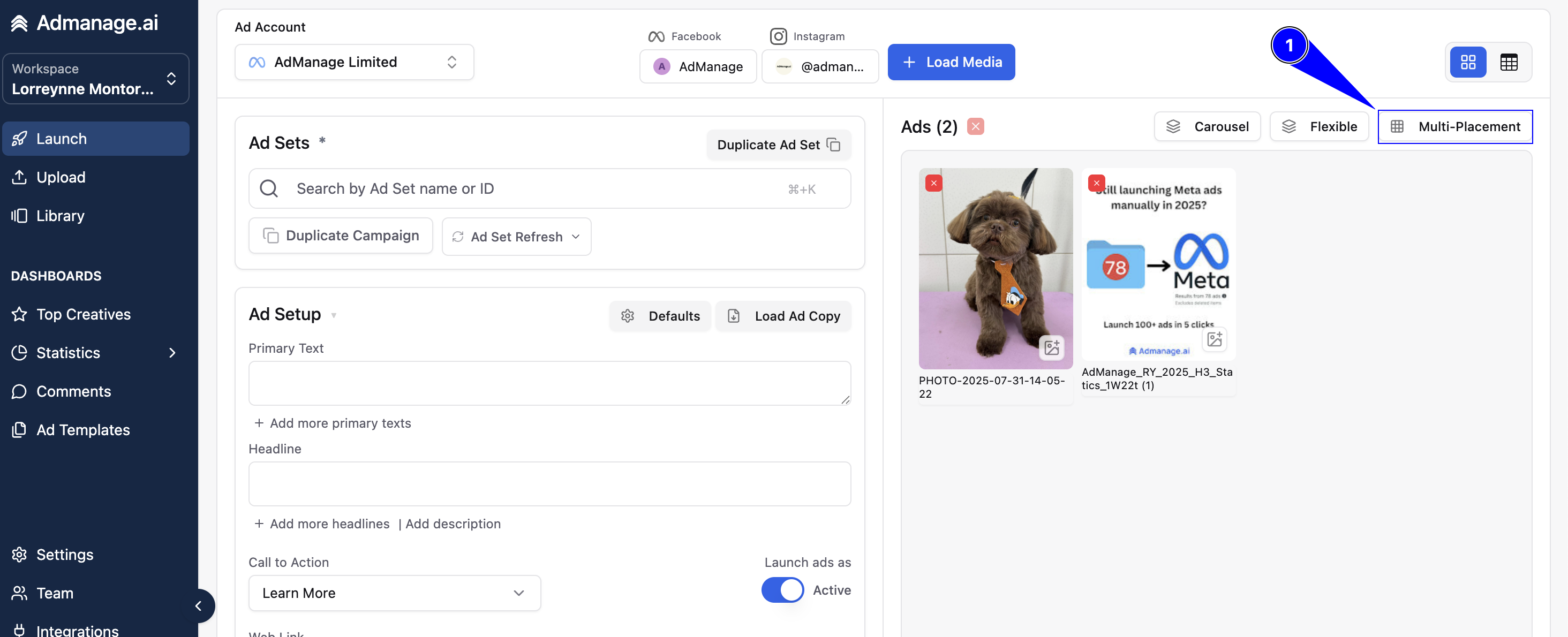
Access Grouping Tool: Click the "Multi-Placement" button, located in the top right corner of the launch interface.
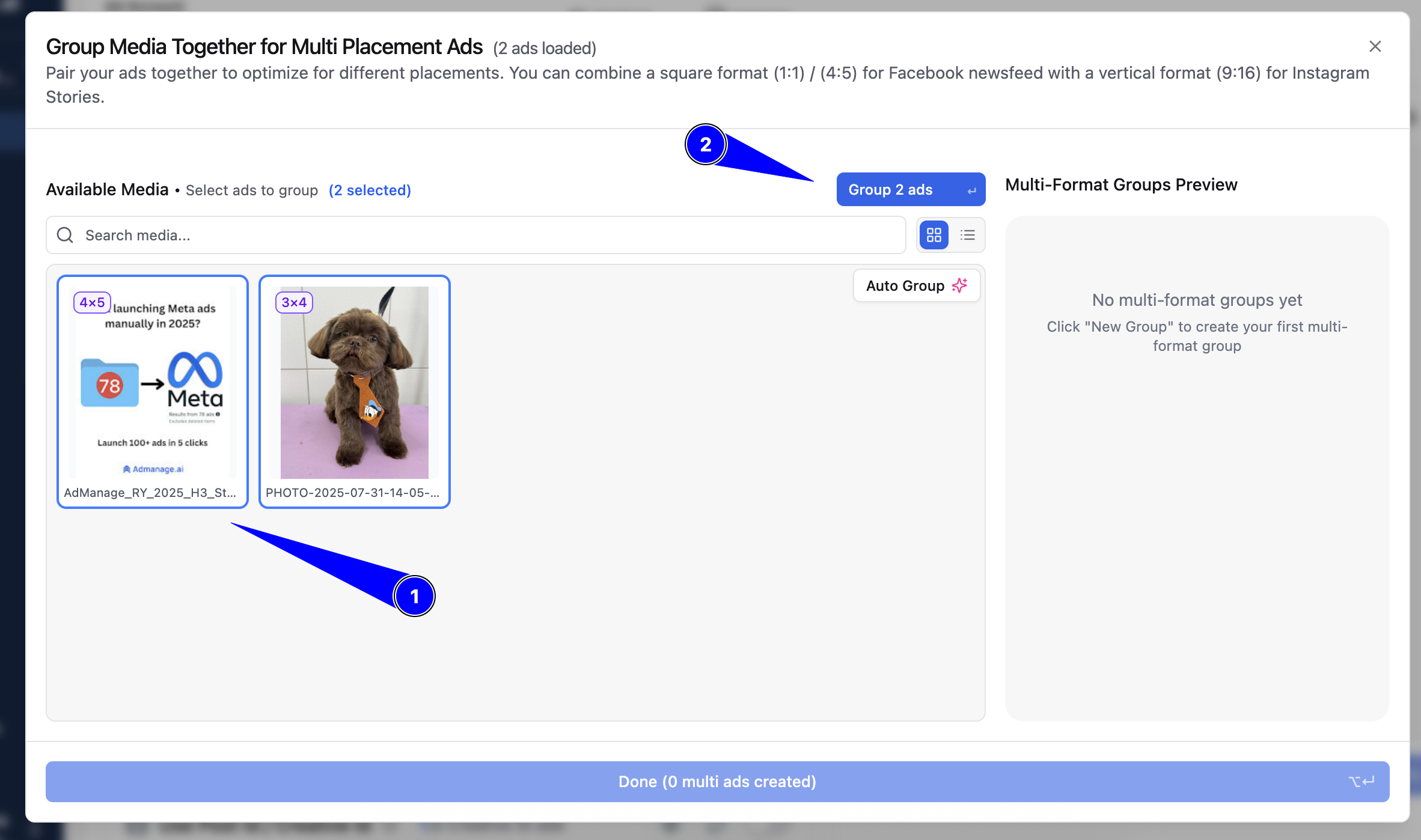
Select Creatives: Click on the individual ads you wish to link together.
Finalize Grouping: Click the "Group Ads" button.
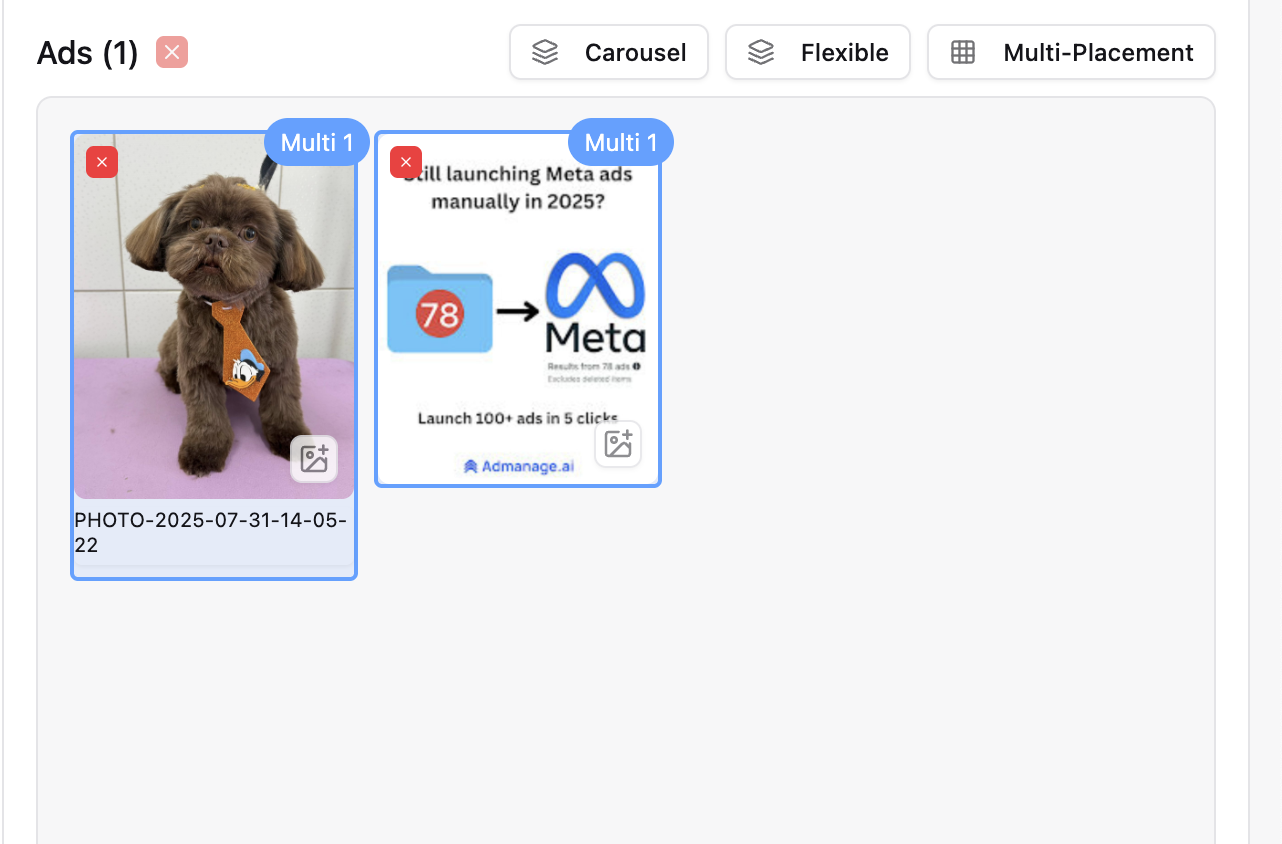
Launch: The selected creatives are now linked and will launch as a single multi-format ad unit.
Using the Auto Group Button
If you have manually added media from the library or previously ungrouped creatives, you can re-apply the automatic logic:
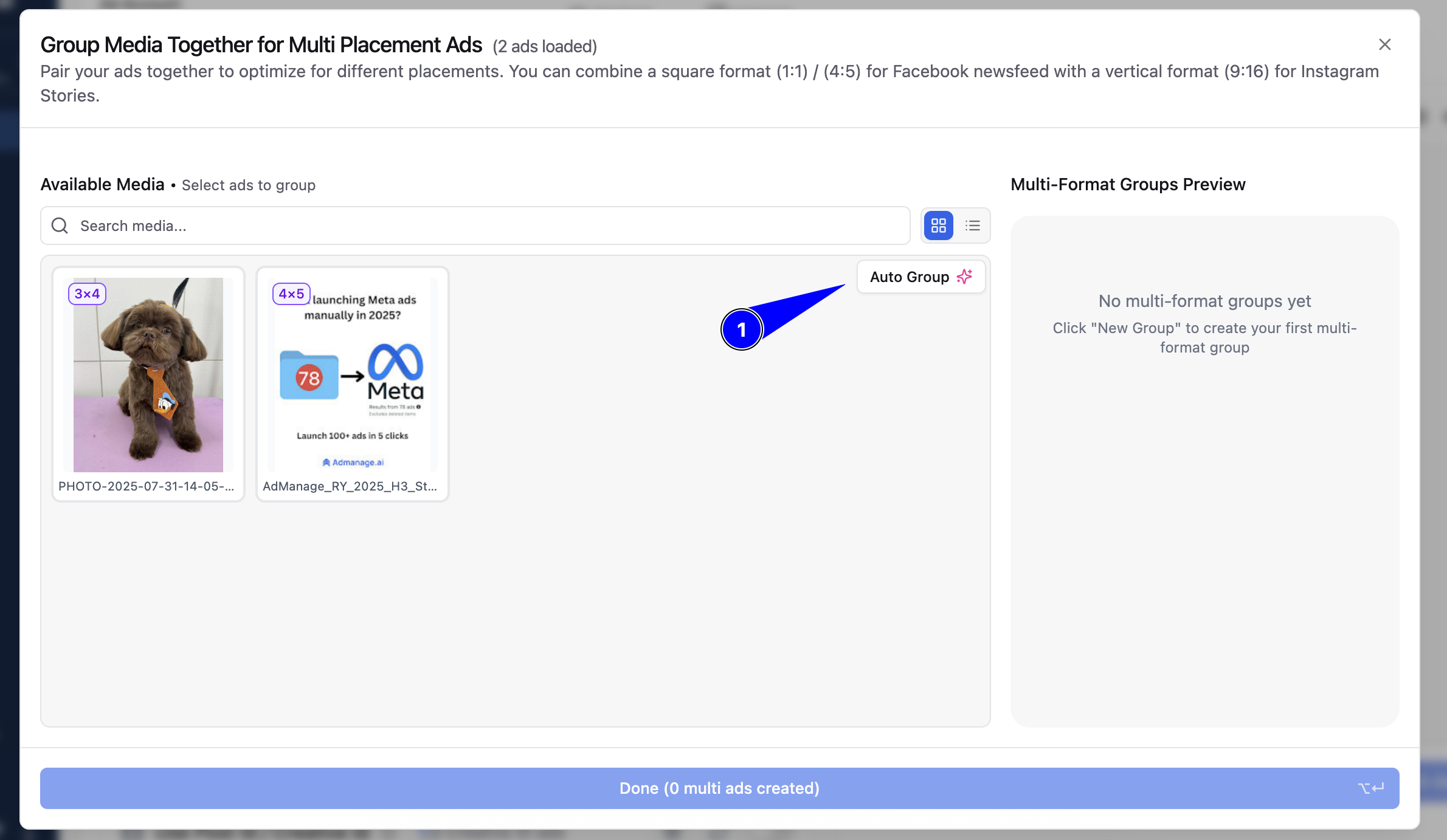
Within the Multi-Placement section, there is an "Auto Group" button. Clicking this button applies the automatic grouping logic to the media currently displayed, helping quickly organize your files.
If you notice that certain naming patterns aren't being recognized, you can contact support to add new logic for your specific naming convention.